Enter data
You can use Quick Data Entry to enter measurement data without creating a customizable Inspection.
Launch Quick Data Entry
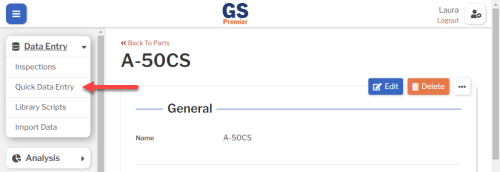
- On the navigation menu
 , expand the Data Entry
  section. Then select Quick Data Entry.
Choose a Process and your Part
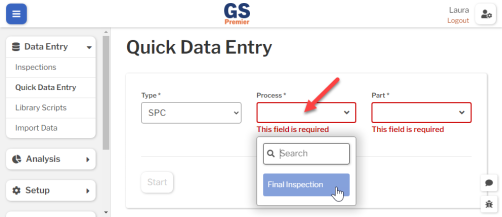
- For the Type, choose SPC. Then select a Process from the list.
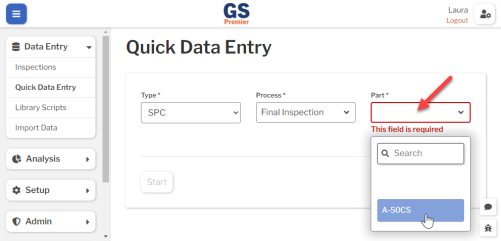
- Select your Part from the list.
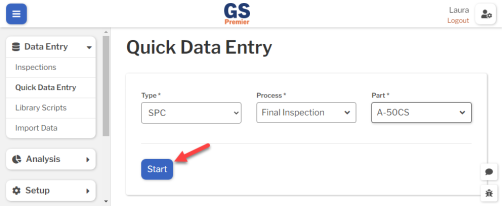
- Select Start to begin.
Enter Date Time and Traceability
- Optionally, enter a Date Time and traceability values for the first subgroup of data. To use your PC date/time, just leave the Date Time blank.
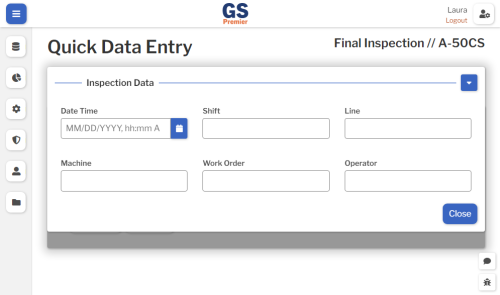
 Pro tip: You can also configure any traceability to require entry and apply rules for what entries are valid.
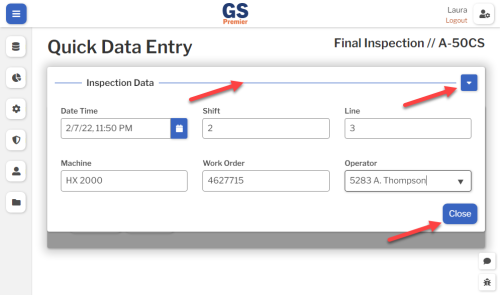
- After entering a Date Time and traceability, close this panel by selecting the Inspection Data heading or drop-down button
 , selecting the Close button, or pressing the ENTER key.
Enter Measurements
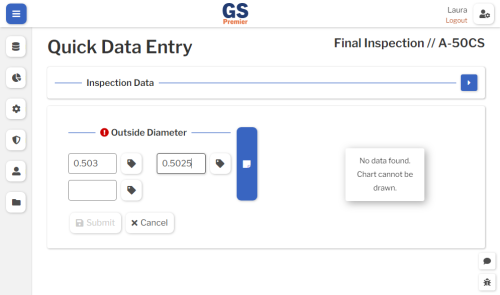
- Start entering the measurements for your first subgroup.
 For multiple measurements, you can press the TAB key to move to the next measurement (PC only). Or select the next measurement box - typically moving across and then down.
- If you are missing a measurement from the subgroup, select
 and then select Missing Data.
 - To enter a note for the subgroup, select
 .
. 
- If you entered more characteristics for this part, they will all be displayed here for data entry.
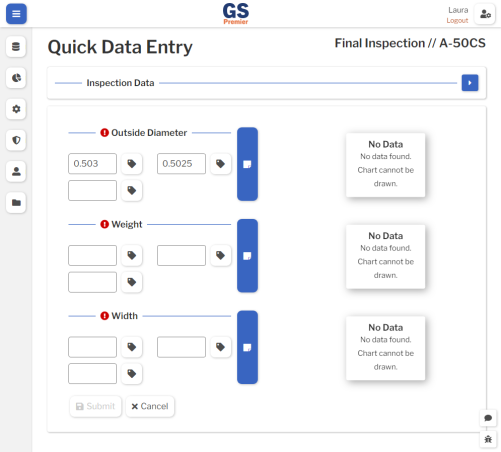
- (optional) After entering the last measurement, press the TAB key to perform the real time checks assigned to this characteristic (PC only).
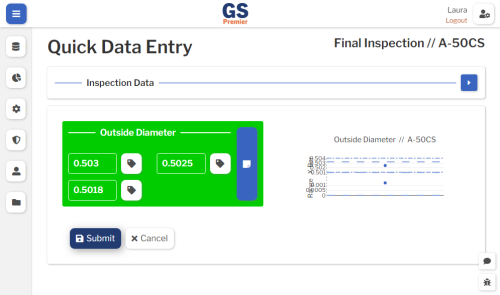
- If a measurement violates an individual check — such as a specification limit — its background will turn red and a message will display below the measurement.
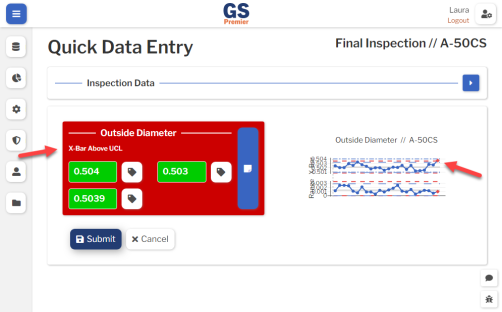
- If the subgroup violates a subgroup check — such as a fixed control limit — its background will turn red and a message will display above the measurements.
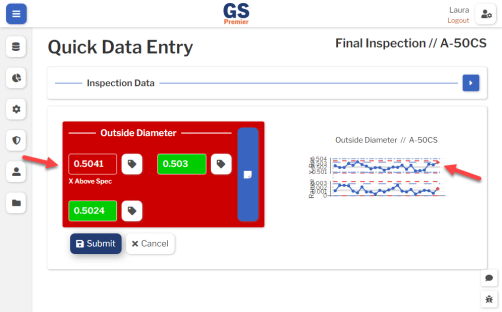
- If a measurement violates an individual check — such as a specification limit — its background will turn red and a message will display below the measurement.
Submit the subgroup
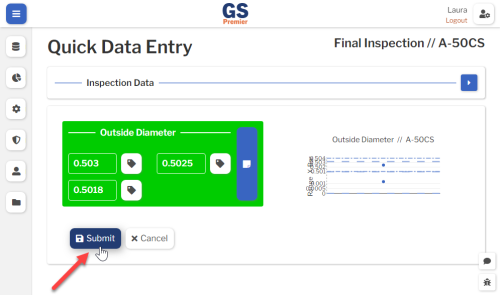
- Select the Submit button or press the ENTER key to store this subgroup.
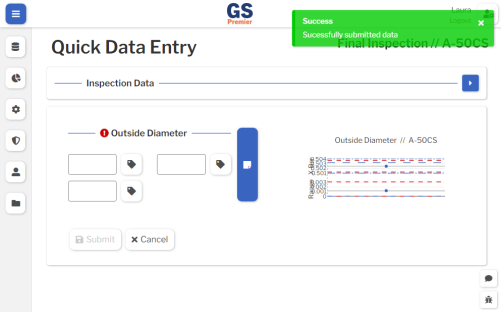
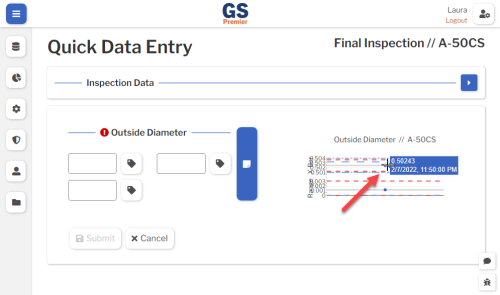
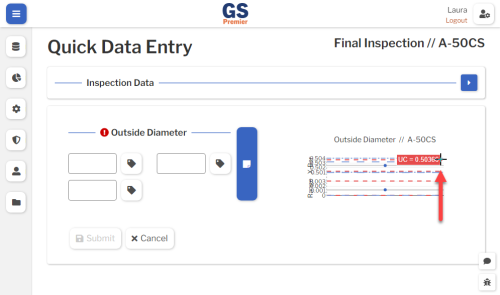
- You can get more information about any data point or limit line.
- on a PC: Hover your mouse over the data point or the end of the limit line.
- on a tablet: Select the data point or the end of the limit line.
- Congratulations
 ! You just entered your first data subgroup!
Enter more data
- Now enter the rest of your data for this part and characteristic.
- If you need a different Date Time or traceability values for the next subgroup, select the Inspection Data
 panel and enter your new values before entering the next subgroup.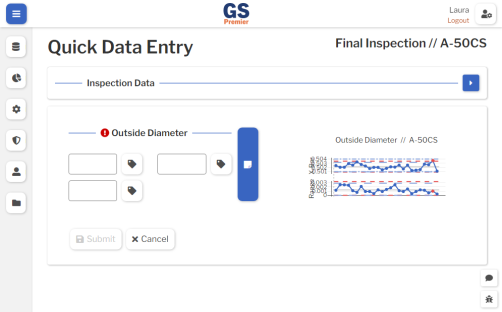
- If you need a different Date Time or traceability values for the next subgroup, select the Inspection Data