SPC Test
The SPC Test is used in Inspections to collect measurement data for one Characteristic of a Part.

Settings
| Setting | Description |
|---|---|
| Label | The display name shown to the operator during the Inspection. This will also be stored as the data record's Test Label for analysis. |
| Visible | Whether the Test is shown to the operator in the Inspection. A Test's visibility does not affect validation or whether data is stored. |
| Enabled | Whether the Test can accept user input. Disabling a Test can be useful when the value is set via scripting. |
| Script ID | Identifies how this Test is referenced in Inspection Scripts. |
| Required | Whether the operator must complete this Test before submitting the Sub-Inspection. |
| Characteristic Match Method | Controls how the Characteristic is determined. A Characteristic must be set to submit data, and can either be set statically or calculated dynamically based on the Part and this Test's Tag property. It is recommended to use Static Characteristic if this Test will only be used for a single Part or if the Characteristic will be set via scripting. |
| Characteristic | If the Characteristic Match Method is Static Characteristic, the selected Characteristic. |
| Tag | If the Characteristic Match Method is Match by Part and Tag, the Tag of the Characteristic to match on the Part in the same context as this Test. See Collecting SPC Data for a more in-depth example of dynamic Inspections. |
| Value Specific Traceability | Traceability to link to individual values. Setting this property will require the operator to enter a value for each selected Traceability for each subgroup value. Only Traceability that have been created as Only Applies To Values can be selected. |
| Test Specific Traceability | Selected Traceability and values which only apply to this Test. |
| Store Data | Determines how validity checks are performed and whether the values in this Test are submitted to GS when the Sub-Inspection is saved. If Store Data is selected, validity checks are performed and data is submitted. If Do Not Store Data is selected, validity checks are performed but data is not submitted. If Bypass Validity and Do Not Store is selected, validity checks are not performed and data is not submitted. |
| Note Button | Whether the button allowing the operator to enter notes is displayed and whether a note is required to be entered. See the related property in Sub-Inspections and Inspections. |
| Alert | The Alert to send if a real-time failure occurs in this Test. |
| Serial Device | The Serial Device used to collect measurement values. |
| Border | Whether to display a visual border around the Test in the Inspection layout. |
| Freeze Test | If this Test is placed on the same row as a taller Test, this Test will not scroll off the screen until the taller Test scrolls off the screen. |
| Show Description | Whether to display the selected Characteristic's Description below this Test's label. |
| Show N/A Toggles | Allows the operator to mark individual values as missing. |
| Show Cell Label | Enables the Custom Cell Label property to show placeholders in value inputs. |
| Custom Cell Label | If Show Cell Label is checked, the custom label used as a placeholder in value inputs. Use {{index}} as the expression for the value's position in the subgroup.For example, using the value Data {{index}} will display as  |
| Auto Next Timeout (ms) | When set, typing a value in will automatically focusable input after not receiving input for the specific number of milliseconds. This setting is ignored when a Serial Device is selected. |
Validation
When an SPC Test is required, all values must be filled in or marked as Not Applicable.

Marking a value as N/A is useful in situations where not all readings are available, such as if two different machines have a different number of cavities but produce the same part. Users may use the N/A Toggle next to the input to mark a value as N/A.

If the Test's Characteristic has Reasonable Limits, the values must be between the reasonable limits to be valid.
Real-Time Failures
Real-Time Failures are evaluated when the browser focus leaves the Test. During this calculation, the Test will enter a temporary loading state. The calculation uses the most recent 25 data records that match the Traceability used for real-time checks. Dynamic statistics such as the centerline and control limits are based on this population. The specific real-time checks which are performed are based on the Real-Time Failure Groups set on the Characteristic associated with the Test.
If a real-time failure is found, the Test's background will turn red and the real-time failure will be displayed.

Adding a Note
The Note button can be clicked to open an overlay to enter a note for this Test. This note can be included in Data Tables and can be used in Filters.

A note will be required if this Test has a real-time failure and the Note Button property is set to require notes. If the note is required but has not been entered, the Submit button may still be enabled for the Sub-Inspection. Submitting the Sub-Inspection will open an overlay and the user will be required to enter all missing notes before data is submitted.

Using a Serial Device
If the Serial Device property has been set on this Test, focusing an input of the Test will open an overlay to collect a reading for that input. If the Device has been configured to Also Allow Keyboard Input, the Keyboard Input button may be clicked to enter the value manually.
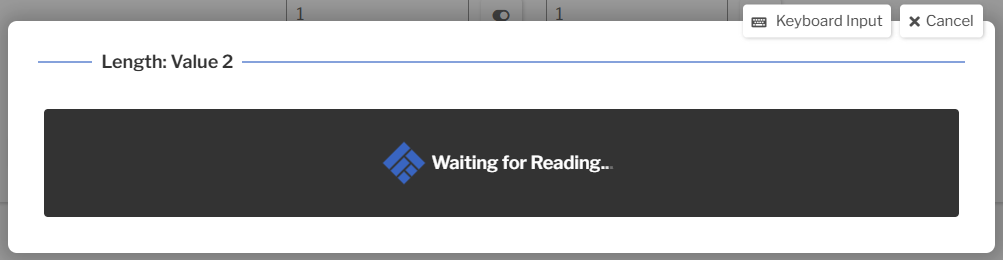
If the Serial Device has been configured to both Send Command to Device Before Reading and Require Operator Interaction, the overlay will instead look like the following. When the Take a Reading button is clicked, the Device's Command to Send will be sent to the device, and the value will be returned and entered into the Test.

After the value has been received, the browser's focus will move to the next input if the Serial Device has been configured to Advance to Next Test After Reading. This is useful when multiple measurements need to be taken in a row, because the user will not need to click on each input before sending the value from the device. If the Serial Device has been configured to not automatically advance, the overlay will simply close.
Value-Specific Traceability
If the Value Specific Traceability property has been set on this Test, the N/A toggles will instead appear as tag buttons.

An overlay to enter the values for the selected Traceability will appear when the button is clicked. All Traceability must be entered for all subgroup values for the test to be valid. Note that the N/A toggle has moved into this overlay.

For more information on collecting Traceability, see the In-Depth Guide.
Linked Charts
The SPC Test can be linked to the Chart Test to give a historical context for values. If an SPC Test is linked to a Control Chart, the SPC Test's mean will be plotted as the last point on the chart, giving users a real-time look at data trends.
Tab Behavior
The behavior of the Tab key while in an SPC Test is determined by the the SPC Tab Behavior Sub-Inspection setting.