Serial Devices
Serial Devices define how readings are collected from connected hardware during an Inspection. Devices connected via RS232 and USB are supported.

Settings
| Field | Description |
|---|---|
| Name | Unique name of the Serial Device. |
| Hide in Lists | Whether the Serial Device appears in lists. Hiding a Serial Device does not affect any previously-stored data. |
| End Of Line String | Select the option that matches the device's documentation. |
| Filter Devices | If the list of serial devices displayed to the user is too long, these fields can be used to filter the list. Clicking the Fill From Device button and selecting the appropriate serial device is the easiest way to determine these values. These values may also be in the device's documentation. |
| Connection Settings | Select the options that match the device's documentation. The buffer size may need to be increased for devices that use verbose communication. |
| Advance to Next Test After Reading | When set to Yes, focus automatically advances to the next input after each reading. When set to No, the overlay closes so the operator can manually select the next input. |
| Also Allow Keyboard Input | Whether the user is allowed to manually enter measurements if the device is temporarily unavailable. |
| Custom Waiting for Reading Prompt | The message displayed to the user while the Inspection is waiting for them to send a reading from the device. |
| Send Command to Device Before Reading | If the device requires that the computer send a string before the reading is taken, select Yes and enter the Command to Send. If there is no method to send the reading from the device, set Require Operator Interaction to Yes. If operator interaction is required this way, the Custom Operator Interaction Prompt is shown in the Inspection as a button to trigger the command. |
| Send Command to Device After Reading | If the device requires that a command be sent immediately after a reading is taken, select Yes and enter the Command to Send. |
| Parse Value From Reading | If the device sends multiple readings separated by a common character, select Yes and set that character as the Split Reading On. Then enter the 1-based index of the column that contains the reading. |
Usage
The first time a Serial Device is used on a computer, the browser will ask the user to choose the appropriate device. The browser will remember the selection and reuse the connection on subsequent runs. The prompt will look like the following:
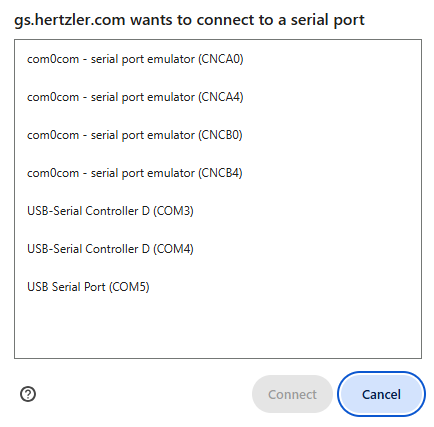
Keep the following in mind when setting up and using a Serial Device.
- Google Chrome and Microsoft Edge are the only browsers that support serial port access.
- Serial port access is not supported on Android or iOS.
- Devices can be connected via a computer's serial port or via USB, as long as the USB connection emulates a serial port.
- Settings such as End of Line String, Baud Rate, and Stop Bits must match the requirements of the target device to ensure proper communication. Take extra caution when setting these values.
Testing a Serial Device
Serial Device connection settings can be tested by clicking the Try It button in the Device's edit page. The connection in the overlay is generated using the current form values. While testing the device, the Show Full Reads/Show Partial Reads option can be toggled to test whether the End of Line String is set correctly.

Import/Export
Serial Devices can be imported and exported using the following CSV structure.
| Column Header | Create | Update | Description |
|---|---|---|---|
| ID | Not Allowed | Required | Serial Device's Internal ID |
| Name | Required | Optional | String |
| Hidden | Optional | Optional | True | False |
| End of Line String | Required | Optional | carriageReturn | carriageReturnLineFeed | formFeed | lineFeed | tab | space | custom |
| Custom End of Line String | Optional | Optional | If the End of Line String is custom, the custom string |
| Filter Devices | Optional | Optional | True | False |
| Vendor ID Filter | Optional | Optional | Number |
| Product ID Filter | Optional | Optional | Number |
| Baud Rate | Optional | Optional | Number |
| Buffer Size | Required | Optional | Number |
| Data Bits | Required | Optional | 7 | 8 |
| Flow Control | Required | Optional | none | hardware |
| Parity | Required | Optional | none | even | odd |
| Stop Bits | Required | Optional | 1 | 2 |
| Advance to Next Test After Reading | Required | Optional | True | False |
| Also Allow Keyboard Input | Required | Optional | True | False |
| Custom Waiting for Reading Prompt | Optional | Optional | String |
| Send Command to Device Before Reading | Optional | Optional | True | False |
| Before Reading Command To Send | Optional | Optional | String |
| Require Operator Interaction | Optional | Optional | True | False |
| Custom Operator Interaction Prompt | Optional | Optional | String |
| Send Command to Device After Reading | Optional | Optional | True | False |
| After Reading Command To Send | Optional | Optional | String |