Enter data
You can use Quick Data Entry to enter Defect data without creating a customizable Inspection.
Launch Quick Data Entry
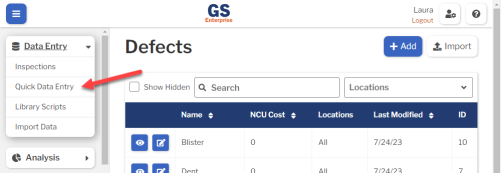
- On the navigation menu
 , expand the Data Entry
  section. Then select Quick Data Entry.
Choose a Process
- For the Type, choose DMS. Then select a Process from the list.
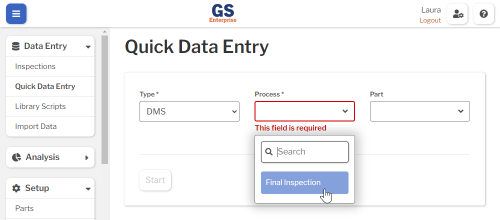
 Pro tip: You can also tag your Defect data with a Part.
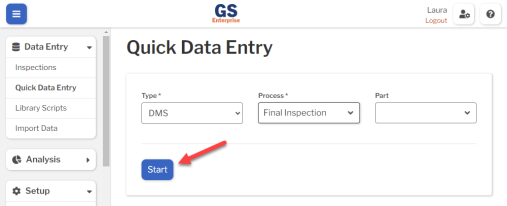
- Select Start to begin.
Enter Date Time and Traceability
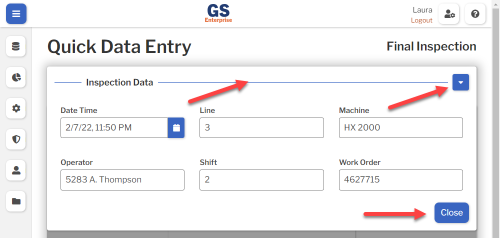
- Optionally, enter a Date Time and traceability values for the first sample. To use your PC date/time, just leave the Date Time blank.
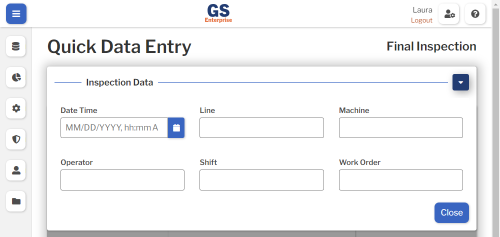
- Pro tip: You can also configure any traceability to require entry and apply rules for what entries are valid.
- After entering a Date Time and traceability, close this panel by selecting the Inspection Data heading or drop-down button
 , selecting the Close button, or pressing the ENTER key.
Enter Sample Size and NCU
- Enter the Sample Size — the number of items you inspected.
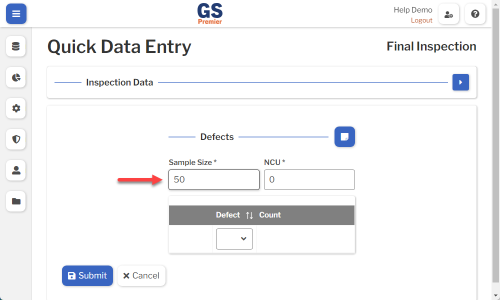
 Sample Size is used to report statistics such as Yield, ratios of Defective parts to Total parts (such as Percent NCU, PPM, and NCU Sigma), and ratios of Total Defects to Total parts (such as Percent Defects, DPM, and Defect Sigma).
- If you need to add defects for a unit that was already entered into GS, you can leave the Sample Size and NCU at 0. This maintains the correct number of units in GS and avoids counting the same unit twice.
- Enter the Nonconforming Units (NCU) — the number of bad parts in the Sample.
- If all the parts you inspected were good, leave this number at 0.
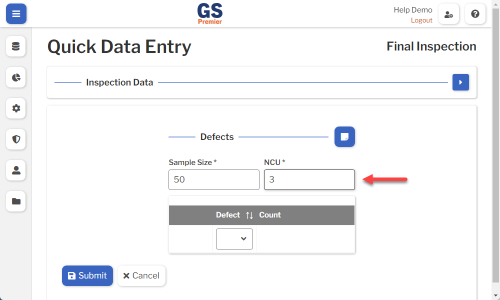
- NCU is used to report statistics such as Yield, Percent NCU, Percent Good, PPM, and NCU Sigma.
Enter Defects
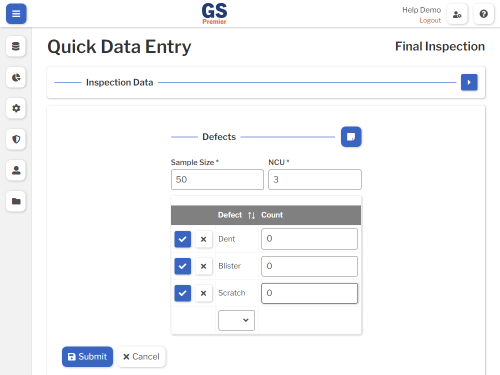
- If you found Defects in the Sample, select a Defect from the list.
- If no Defects were found, you can skip to Submit the Sample.
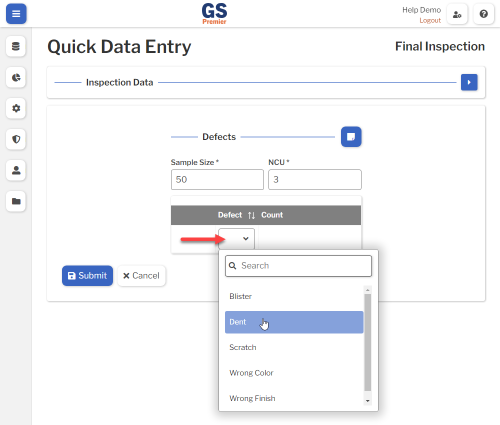
- Defects and counts are used to report and analyze which defects are the most prevalent. This data can also be used to analyze which Defects cost the most.
- Repeat the previous step until all of the Defects you found in this Sample have been added.
- For each Defect you found in this Sample, enter the Count and then press the ENTER key or select the
 Confirm button.
- On a PC, you can click the Count box and then press the UP ARROW and DOWN ARROW keys to increase or decrease the Count for that Defect.
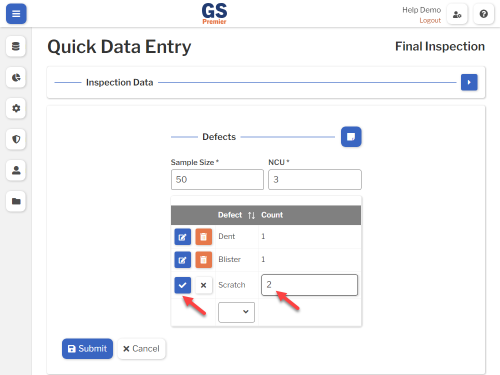
-
- (optional) To enter a note for the Sample, select the
 Note button.
- (optional) To enter a note for the Sample, select the
Submit the Sample
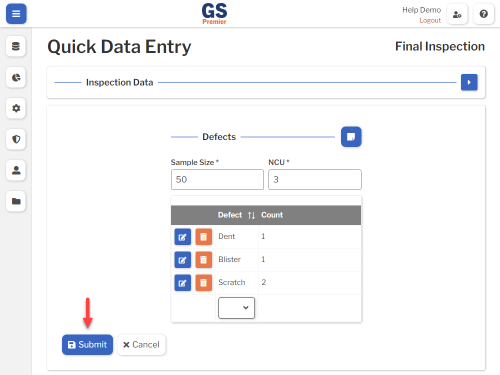
- Select the Submit button to store this sample.
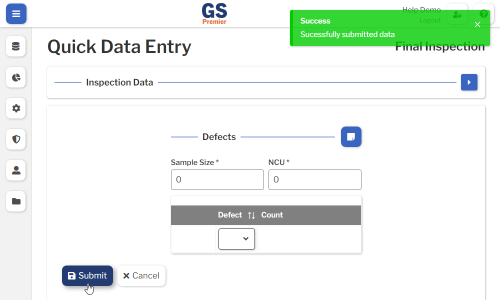
- Congratulations
 ! You just entered your first DMS data record!
Enter more data
- Now enter the rest of your Defect data for this process.
- If you need a different Date Time or traceability values for the next sample, select the Inspection Data
 panel and enter your new values before entering the next sample.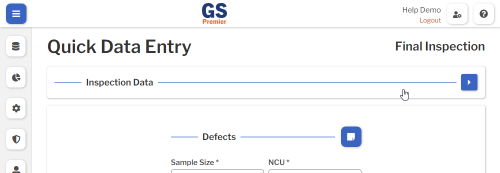
- If you need a different Date Time or traceability values for the next sample, select the Inspection Data