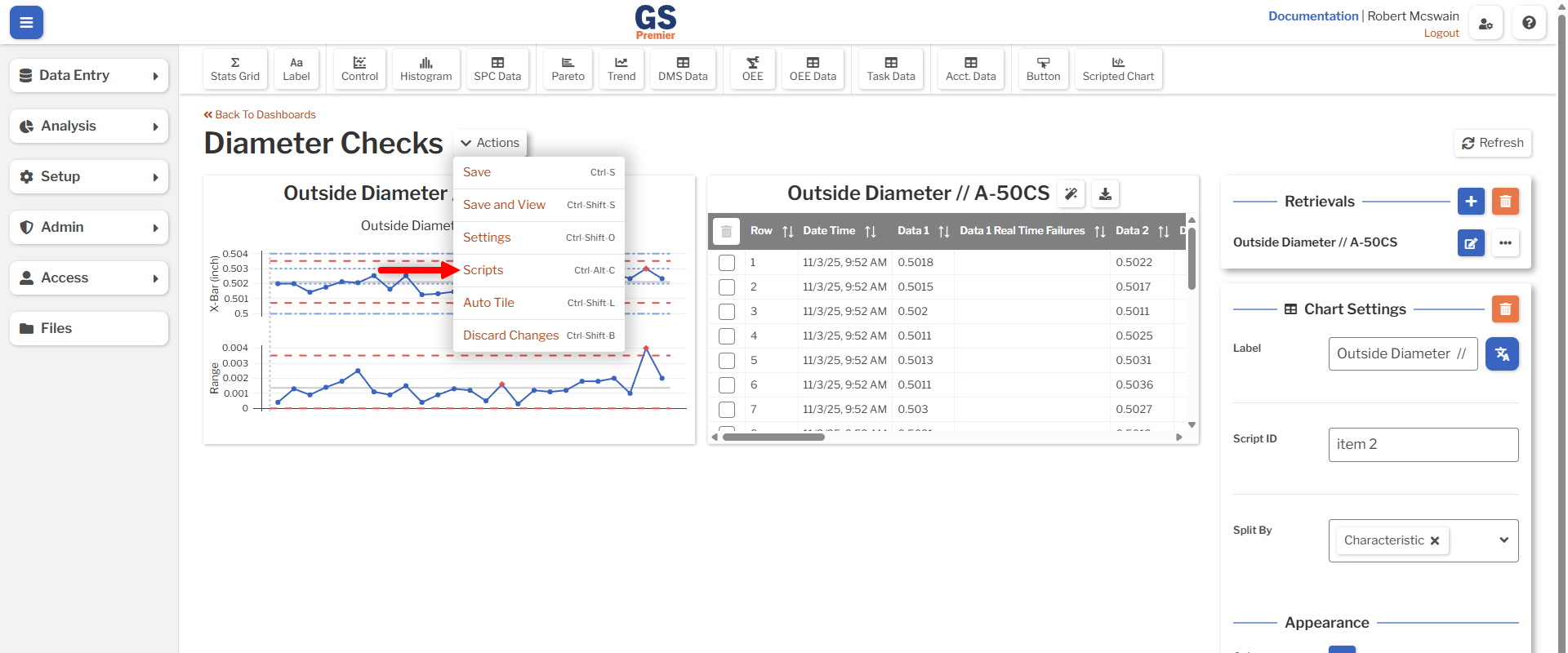
Dashboards
Dashboards are the primary method for analyzing data. Learn more about getting started with dashboards and root cause analysis.
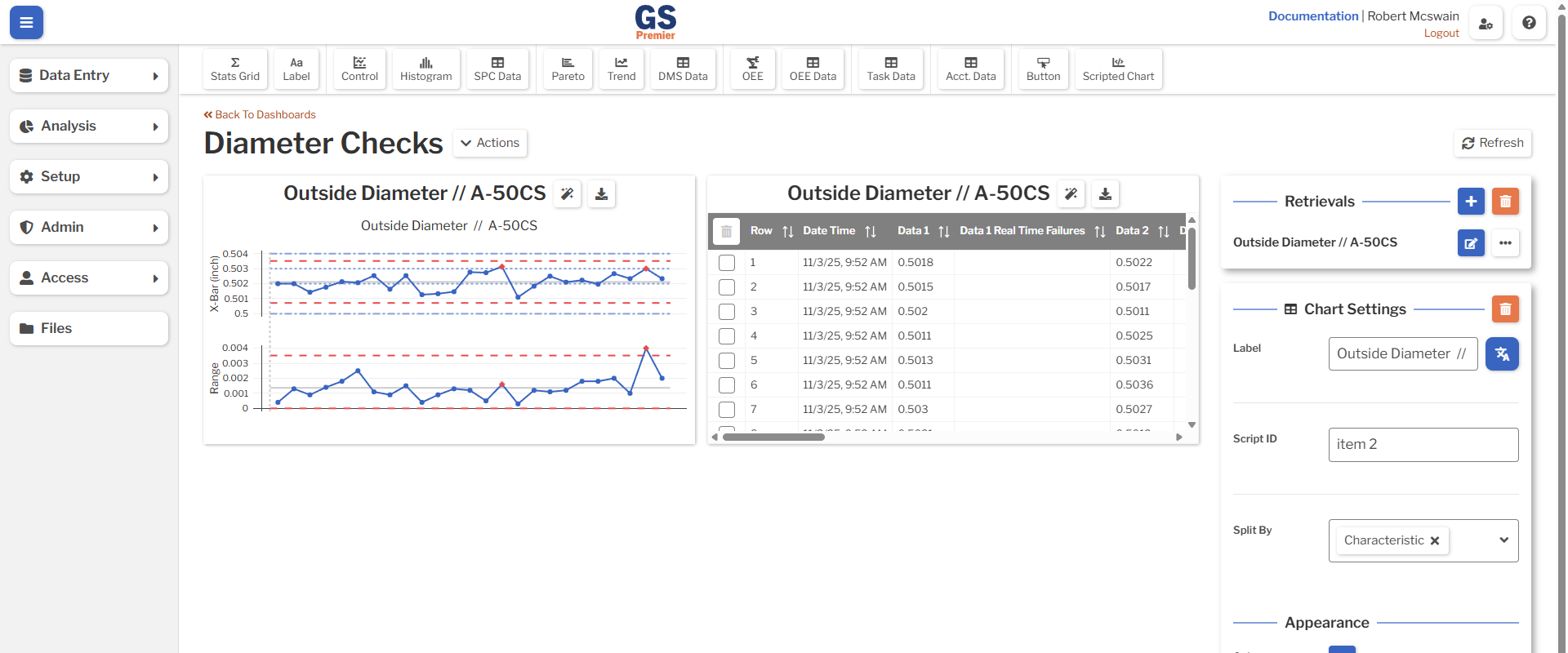
Dashboard Settings
| Setting | Description |
|---|---|
| Name | The name of the Dashboard, displayed in lists. |
| Fit Charts on Screen | When set to Yes, the dashboard will resize all of the items in order to fit them on a single screen. |
| Auto Refresh | Whether to periodically refresh the data in the dashboard. |
| Refresh Interval (Minutes) | Only appears when Auto Refresh is set to Yes. How frequently to refresh the data in the Dashboard, in minutes. |
| Hide in Lists | Whether the Dashboard appears in lists. Hiding does not prevent a Shared Dashboard from being viewed. |
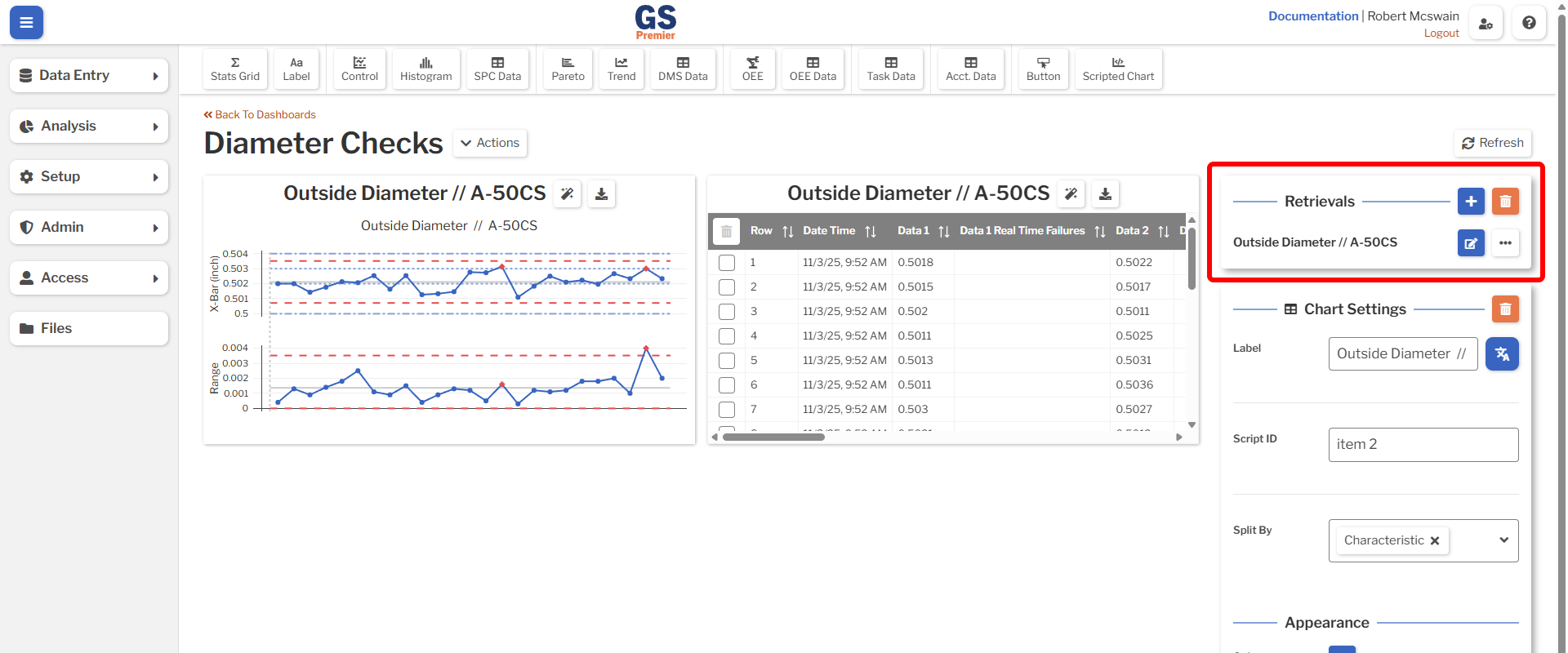
Retrievals
Dashboards use Retrievals to fetch data which has been stored in GS. Retrievals may be added or edited in the retrieval side panel.
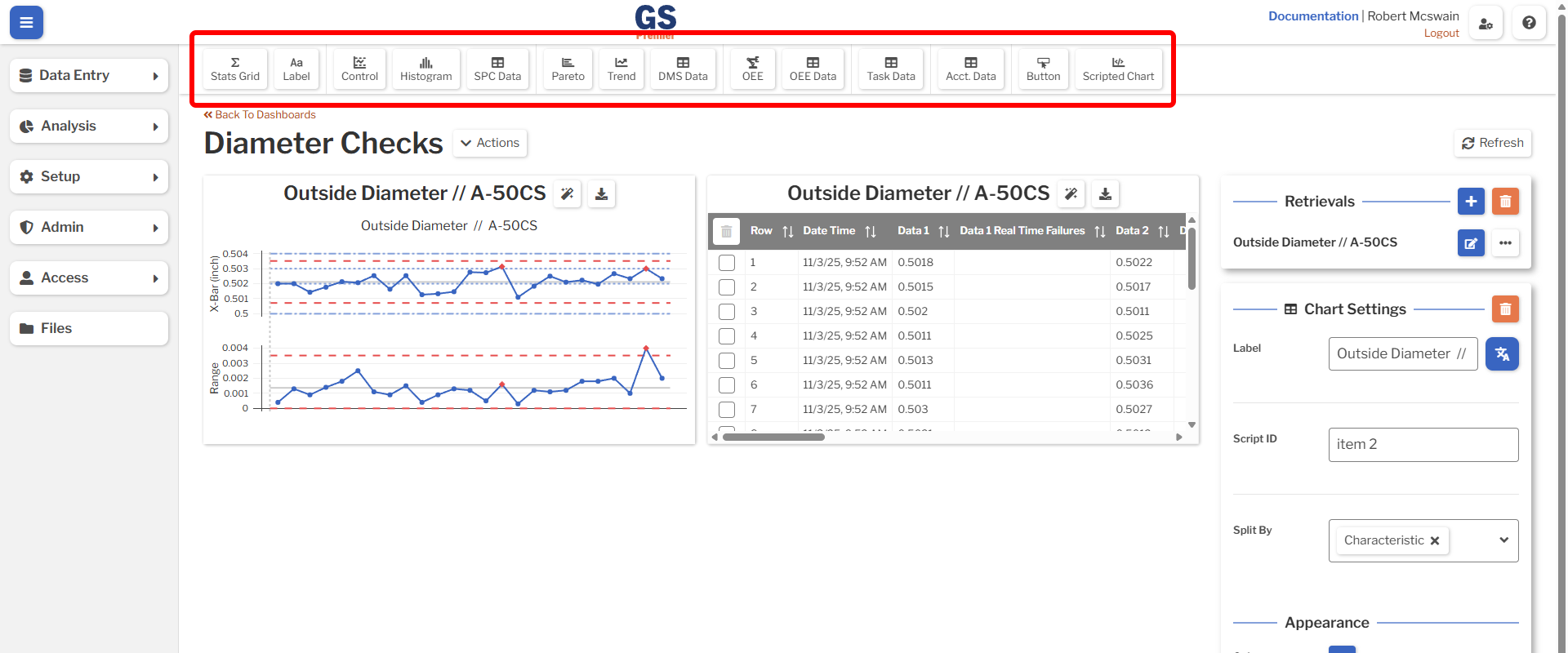
Dashboard Items
Charts, tables, annotations, and buttons may be added to a dashboard by clicking the corresponding button in the toolbar. See the reference page for a specific dashboard item to learn more about creating or modifying their settings.
Resizing
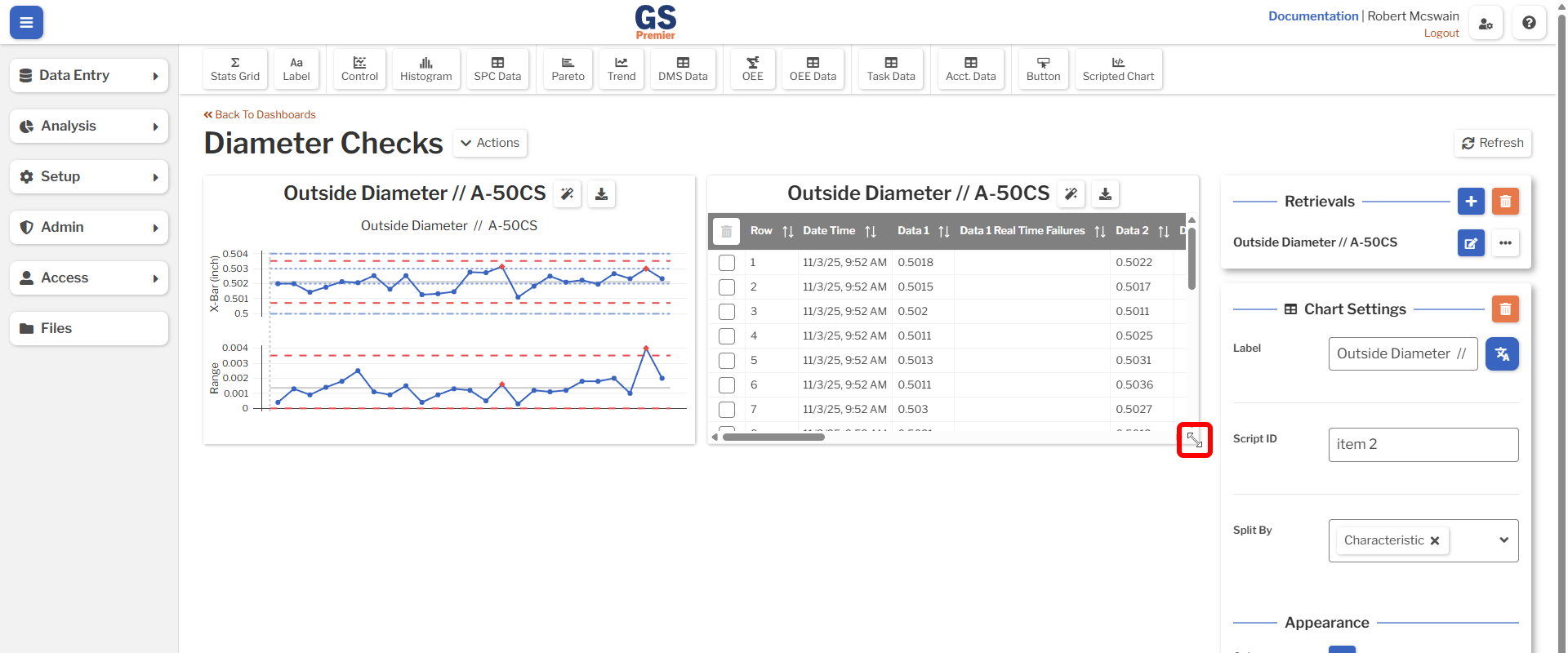
Dashboard items may be resized by clicking and dragging along the edge or corner.
Rearranging
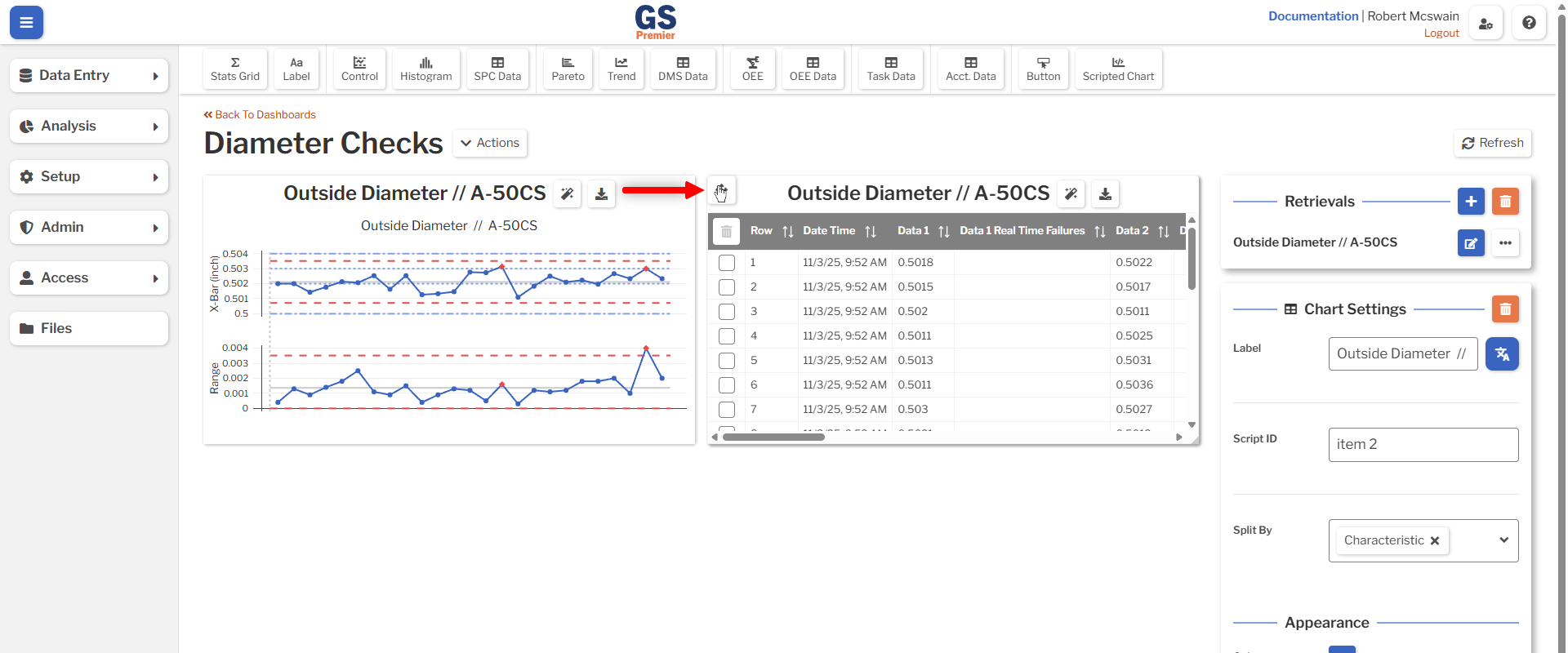
Dashboard items may be rearranged by clicking and dragging the handle in the top left corner.
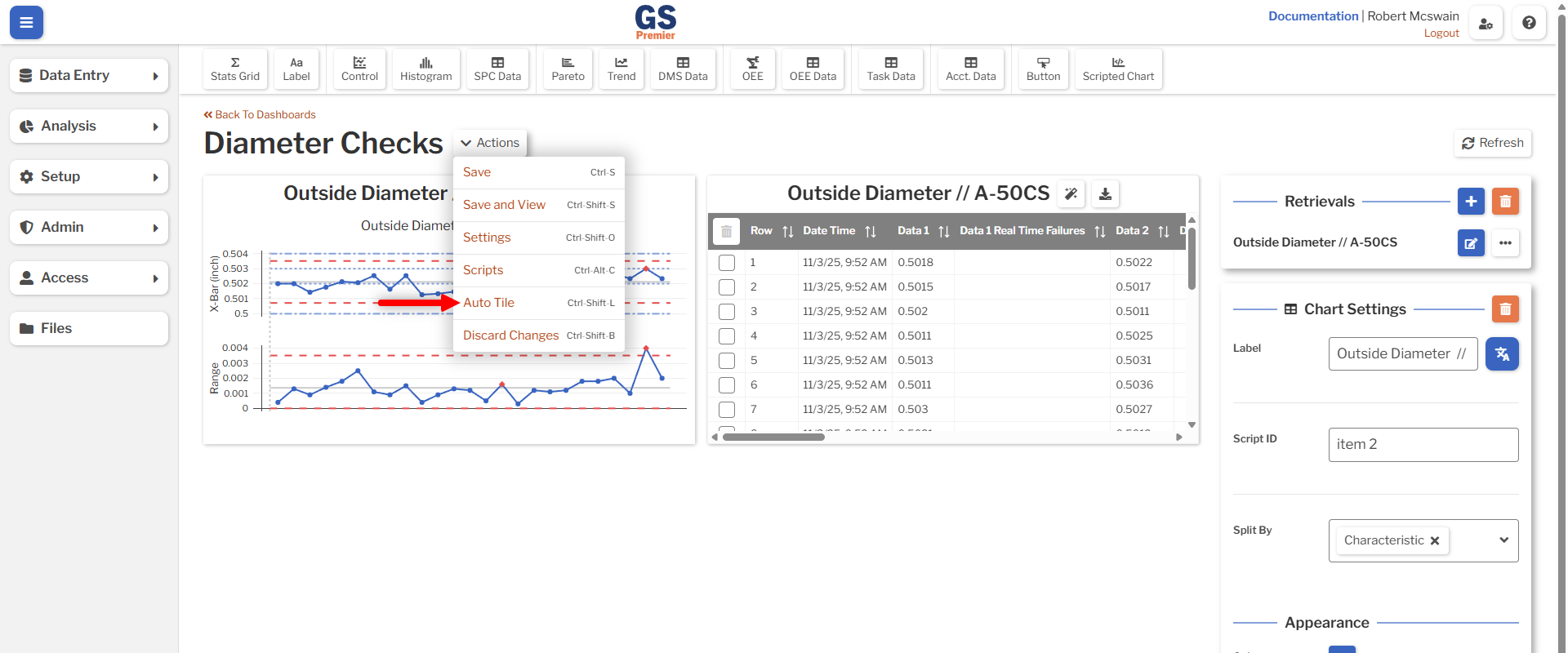
The Auto-Tile action may be used to automatically rearrange the dashboard. This is a one-time action, and items which have been automatically rearranged may be further adjusted.
Careful!
The Auto-Tile cannot be undone. If a dashboard is automatically rearranged, it will need to be reloaded (possibly losing changes) to restore it to the previous state.
Copying and Pasting
Dashboard items may also be copied and pasted by using Ctrl-C and Ctrl-V. The item which is currently in focus will be copied.
Property Window
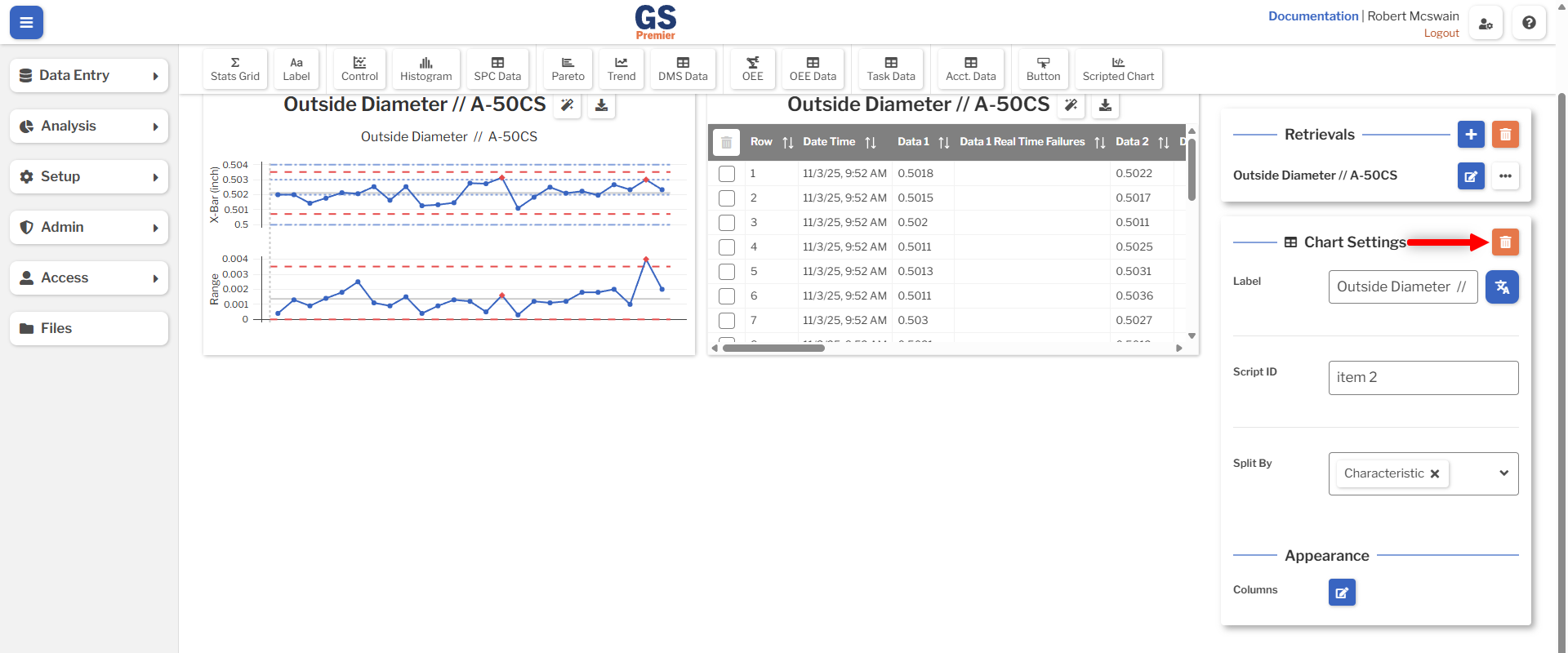
Once an item has been added to a dashboard, it may be selected while editing the dashboard to display the property window. See the specific page for each item for the options available in the property window.
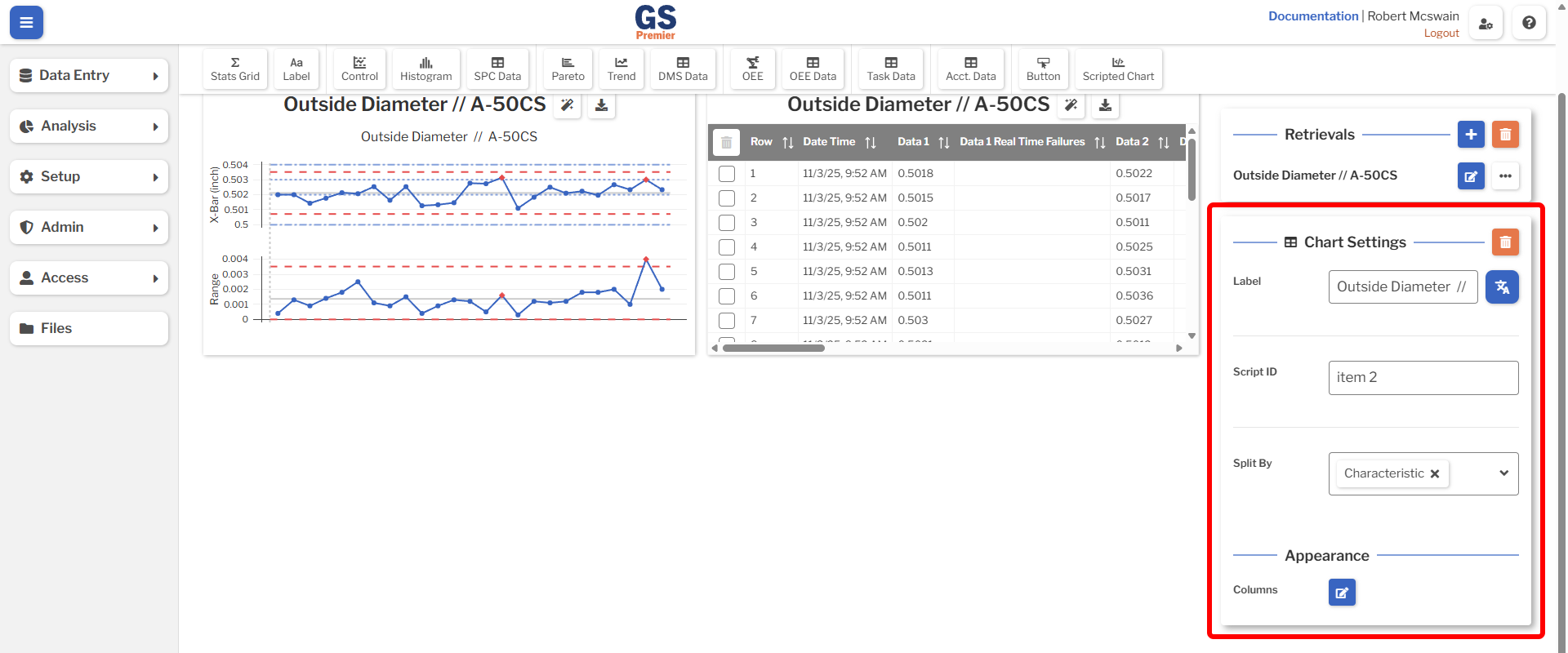
A selected dashboard item may be deleted with the delete key or by pressing the delete button in the property window.
Careful!
Deleting a dashboard item cannot be undone. If a dashboard item is deleted in error, it will need to be recreated manually or the dashboard will need to be reloaded (possibly losing changes).
Dashboard Sharing
Users with the Share Dashboards permission may share Dashboards publicly. This functionality is only available while viewing a dashboard. Sharing a dashboard will create a link which allows anyone who possesses the link to view the Dashboard. The link may not be used to modify the Dashboard in any way.
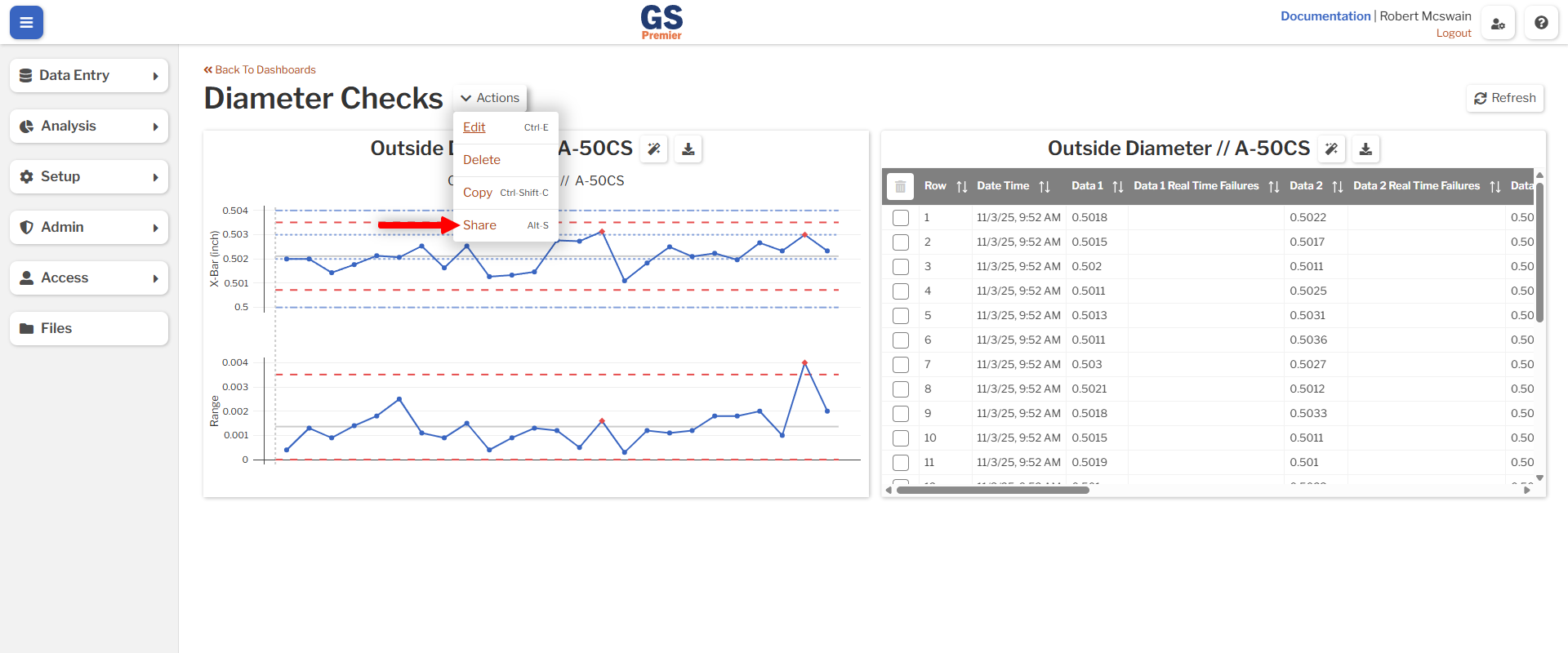
The shared Dashboard will be updated every 10 minutes to display the most recent contents of the Dashboard. Any modifications made to the Dashboard, including the addition or removal of items, will be reflected in the shared Dashboard view.
The contents of the Dashboard will be restricted to only display data which is available to the User who created the share link.
Dashboard links may be unshared by using the Revoke Link button.
Careful!
Anyone who has a dashboard share link will be able to view the contents of that dashboard. Be careful with the link, and revoke them if you believe that someone has obtained access who should not have.
Dashboard Scripting
Dashboards may be extended using dashboard scripting. This allows for creating customized charts, modifying retrievals, and using data from external systems.