Reports
Reports are used to display information in a paged layout, such as for a Certificate of Analysis. Reports are usually printed or exported as a PDF.
Report Settings
| Setting | Description |
|---|---|
| Name | The name of the Report, displayed in lists. |
Designing Reports
The Report Designer is used to lay out the Report's items and control the page format of the Report. The ActiveReportsJS Designer is used in GS to design Reports.
Warning
Reports cannot be edited on devices with small screens, such as a phone or tablet.
Report Items
Report items can be created by dragging an item from the Toolbox to the Report Designer's canvas.
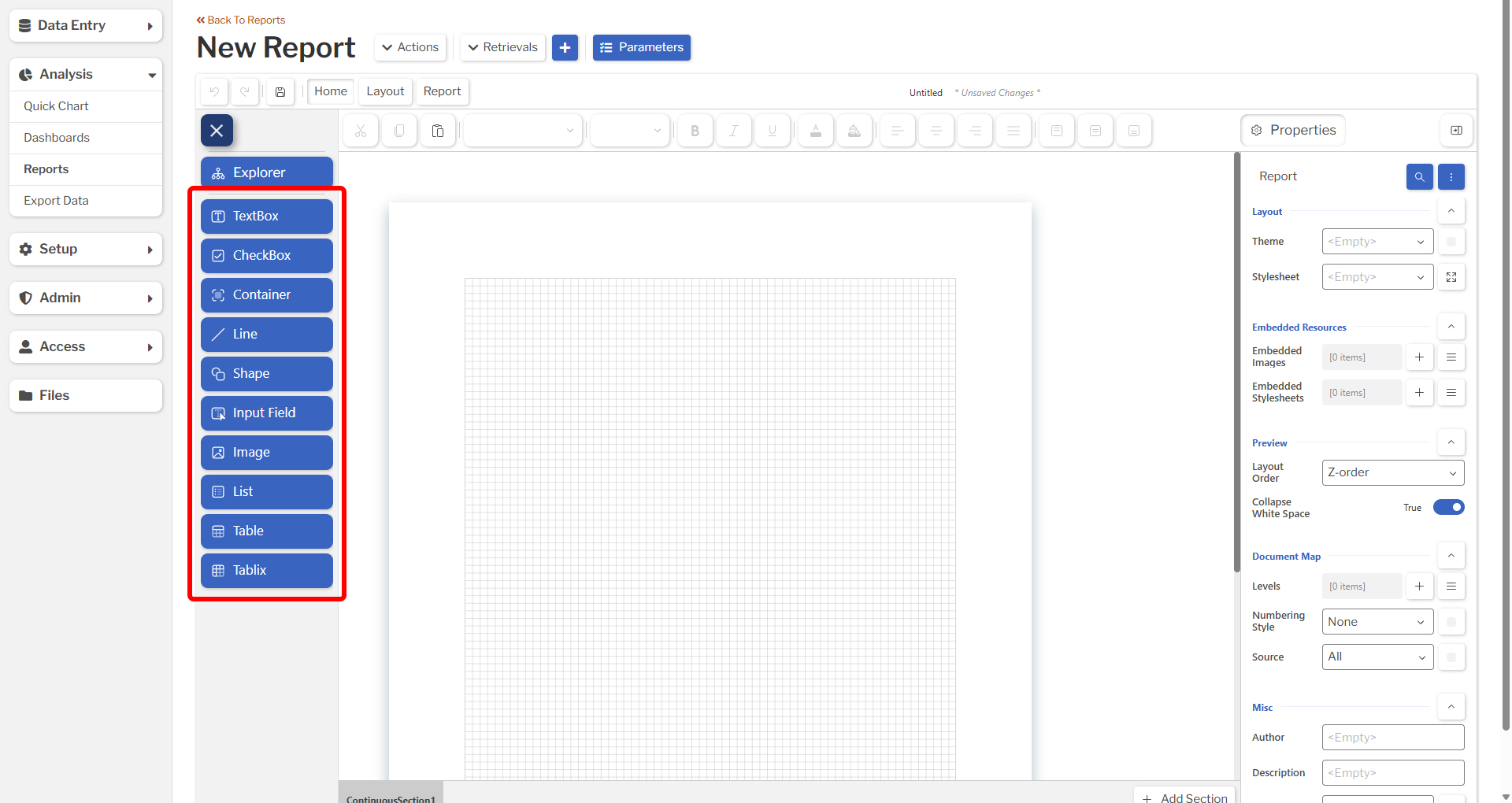
Available items are listed in the following table along with an external link to the ActiveReportsJS documentation page that describes the item in greater detail.
| Item | Description |
|---|---|
| TextBox | Displays static or dynamic textual content. |
| CheckBox | Displays static or dynamic text together with a checkbox. |
| Container | Groups and organizes report items. |
| Line | Draw a vertical, horizontal, or diagonal line. |
| Shape | Legacy report item used to draw shapes. It is now recommended to instead use the Container report item. |
| Input Field | Creates fillable fields in a PDF document generated from exporting a report to PDF. |
| Image | Displays static images or charts. |
| List | Visualizes data by producing a series of sections containing data visualizers such as a TextBox arranged in a free-form layout. |
| Table | Visualizes data in a multicolumn, multirow fashion, with an ordered set of fields in columns and each data record displayed in a row. |
| Tablix | Visualizes data in a similar fashion to Excel Pivot Tables. A tablix condenses data records into groups and arranges unique values of these groups, in horizontal and vertical directions. |
After an item has been added to the canvas, the contents of the item can be set via the ... button inside the item. The property window may also be used to control the settings of the selected item.
Property Window
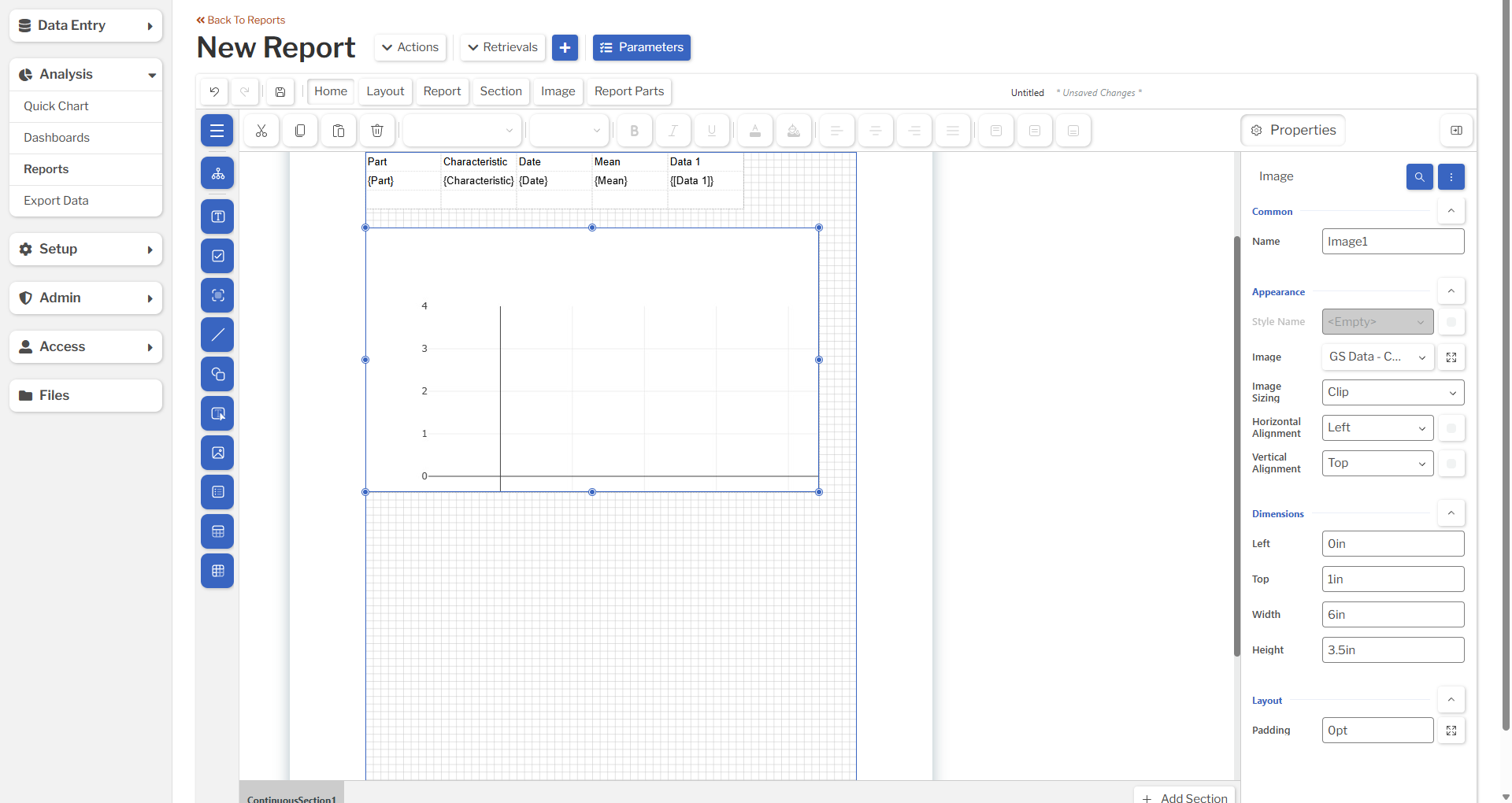
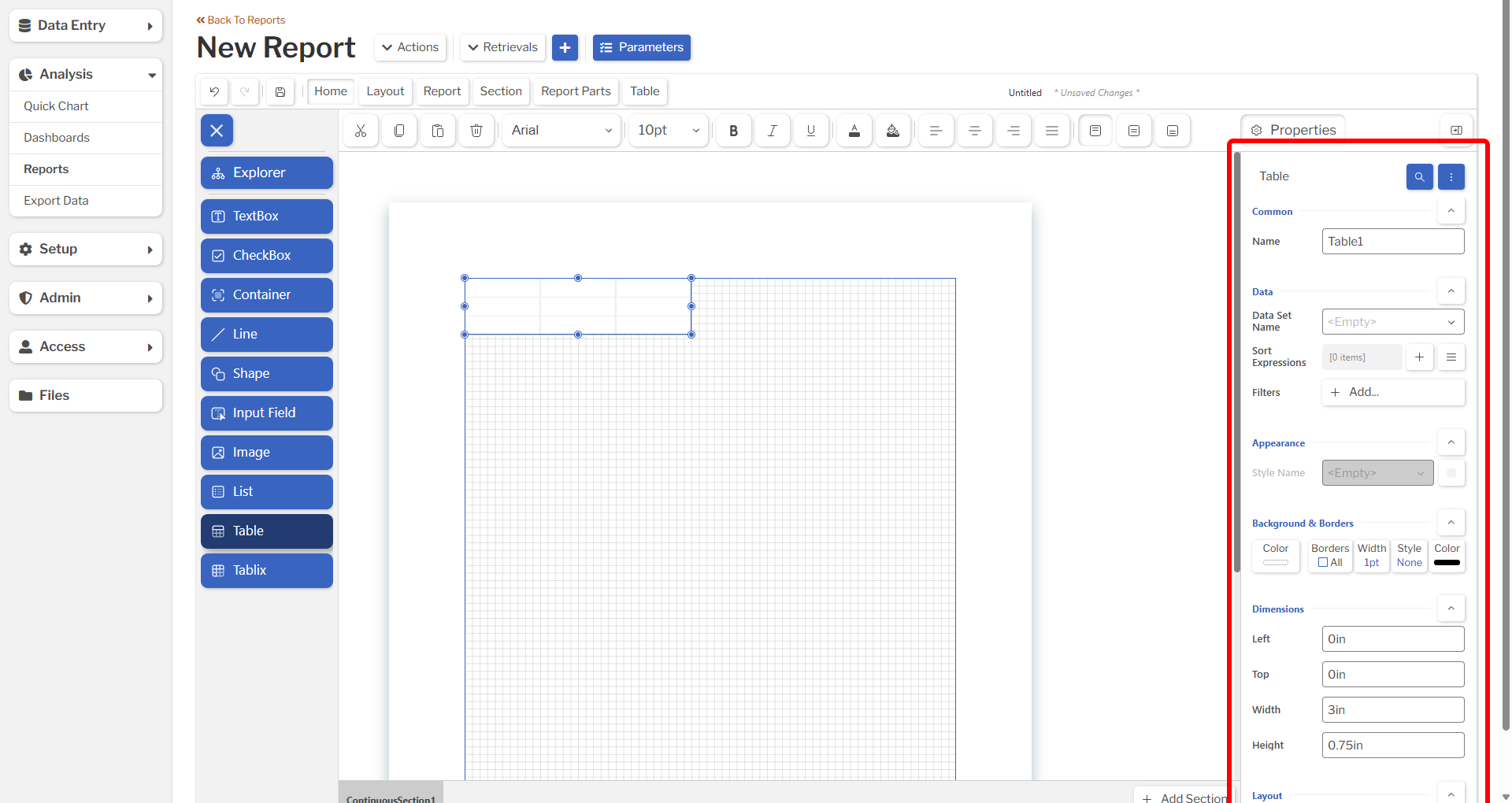
Once an item has been added, it may be selected while editing the Report to display its settings in the property window. These settings include the item's contents, display format, dimensions, layout, and more. See the external links in the item table, above, for details on all settings for an item.
Right-Click Menu
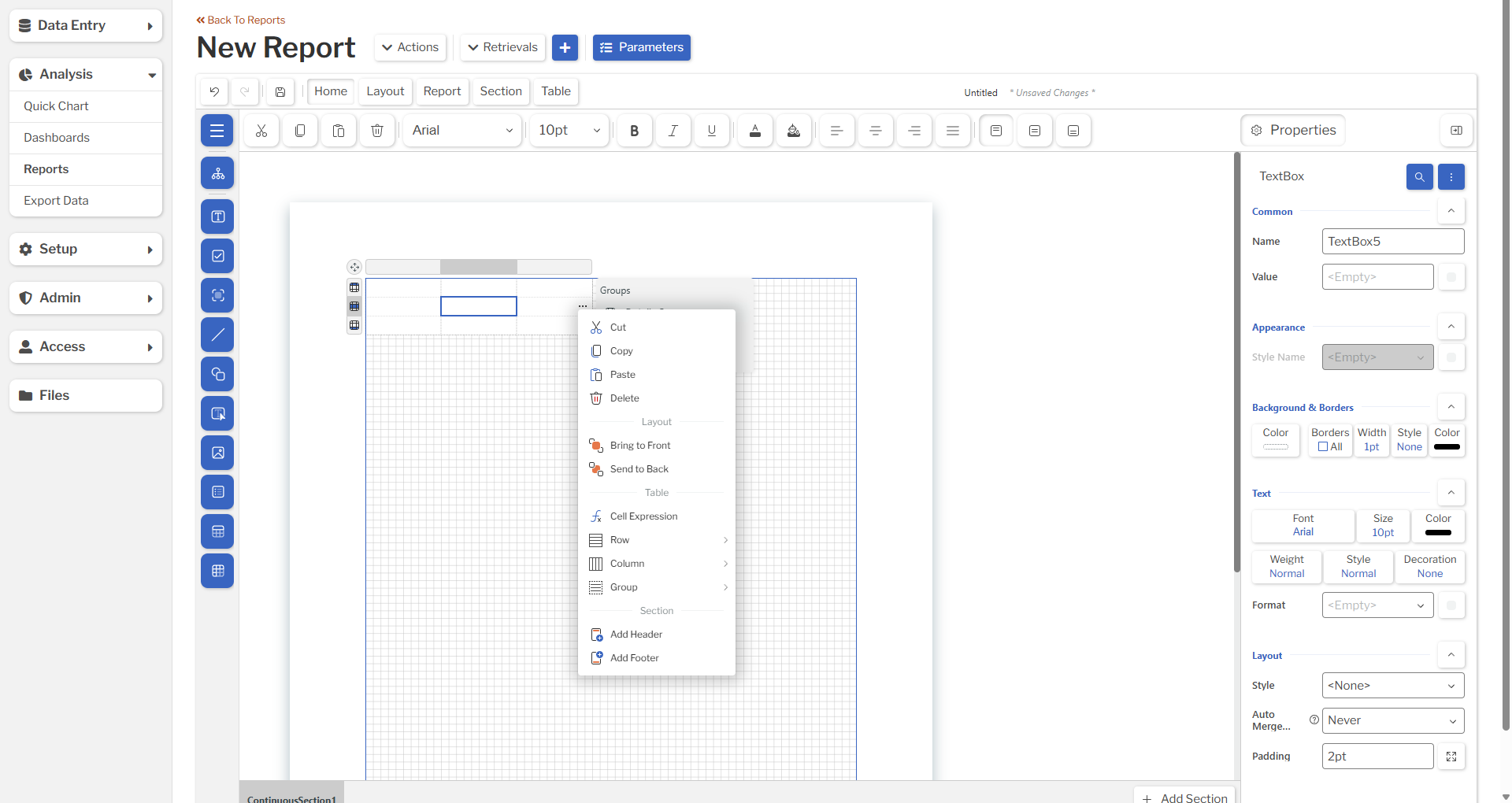
Unlike other places in GS, the Report Designer has a right-click menu that can be accessed on the canvas or any item.
Displaying Charts
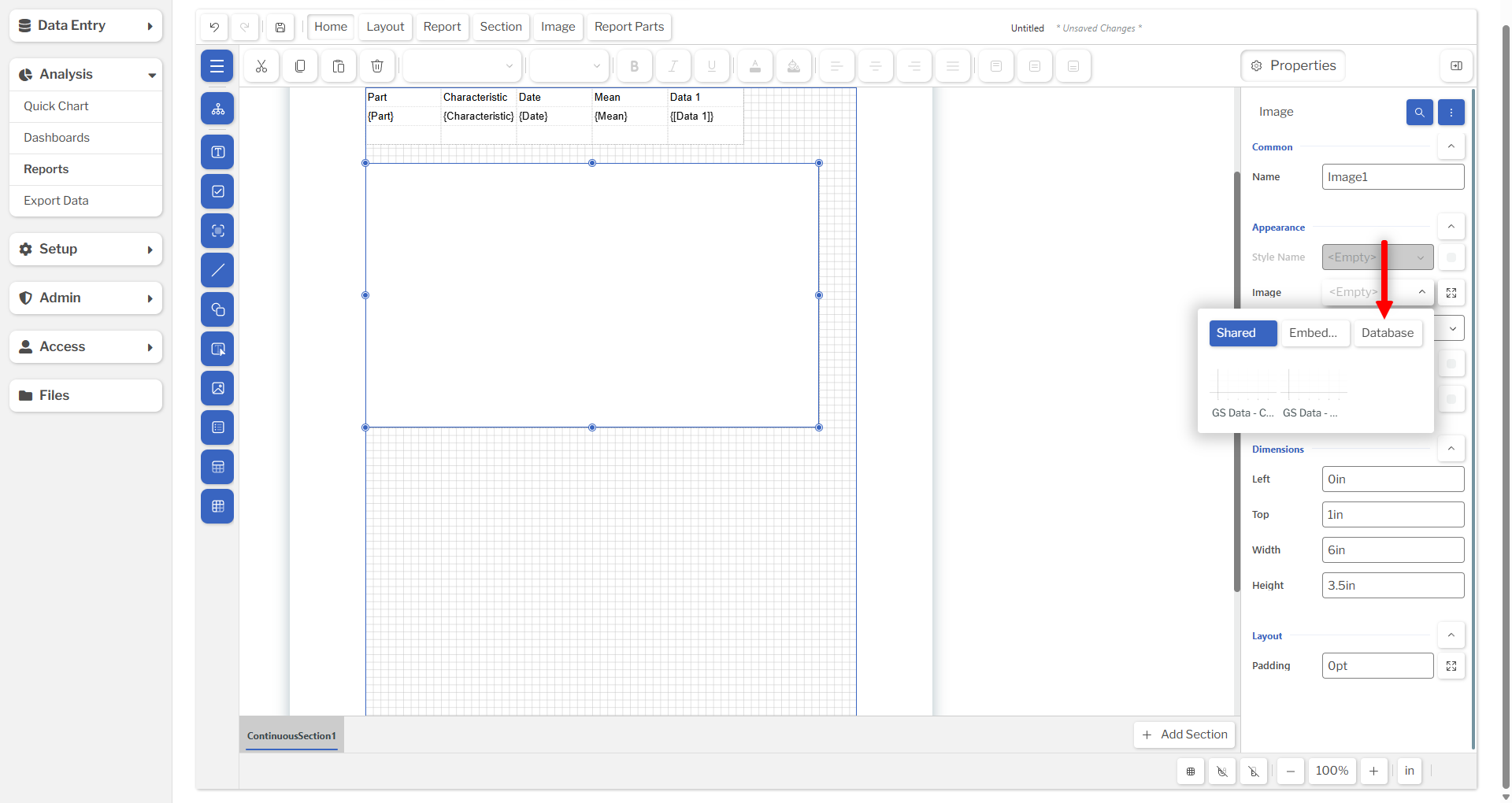
Charts can be included in Reports by selecting the appropriate Charts from the Retrieval-Report Settings overlay. After configuring these settings, the Chart may be selected by adding an Image item and selecting the chart from the list of shared images.
Retrievals
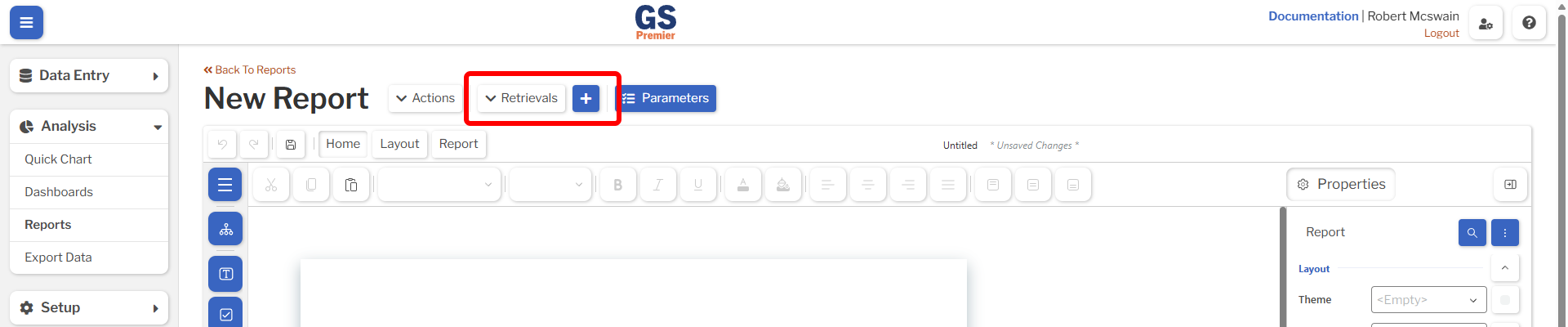
Reports use Retrievals to fetch data which has been stored in GS. Retrievals may be added or edited near the top of the page.
Retrieval-Report Settings
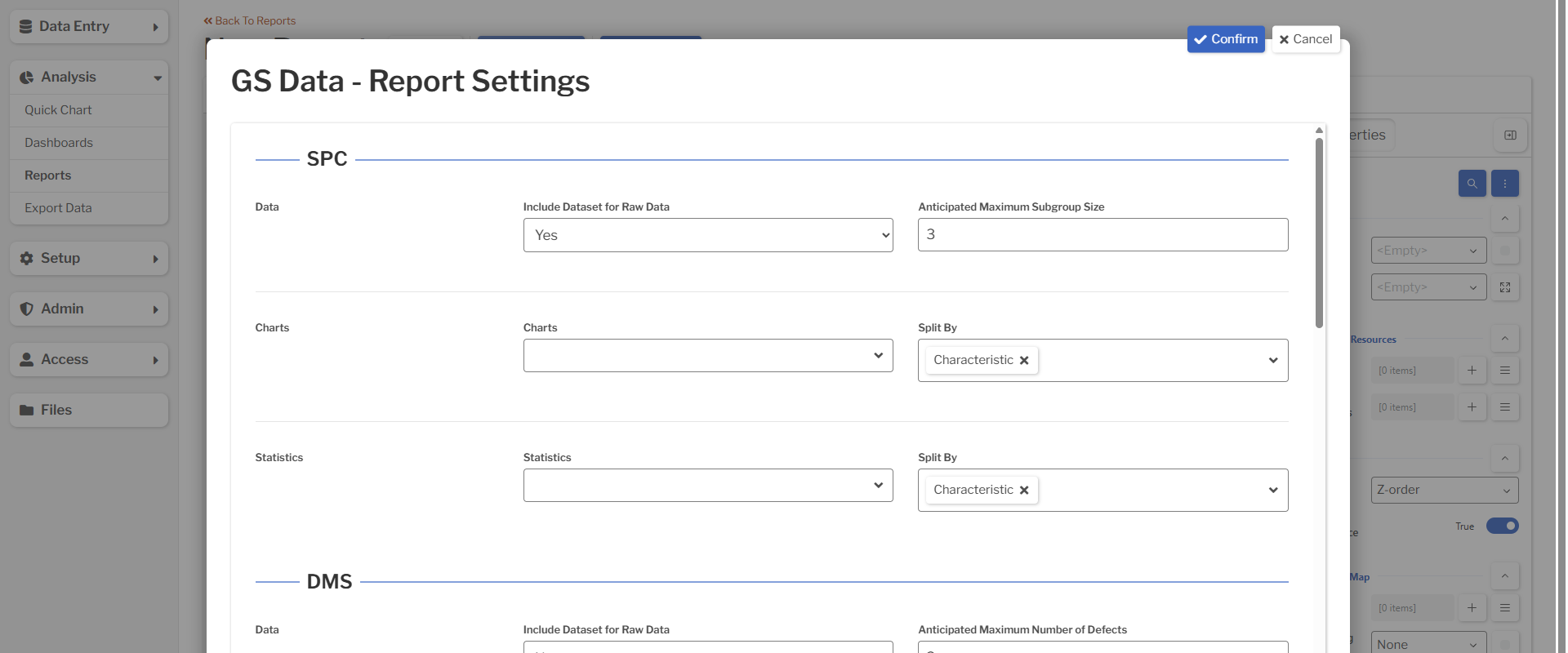
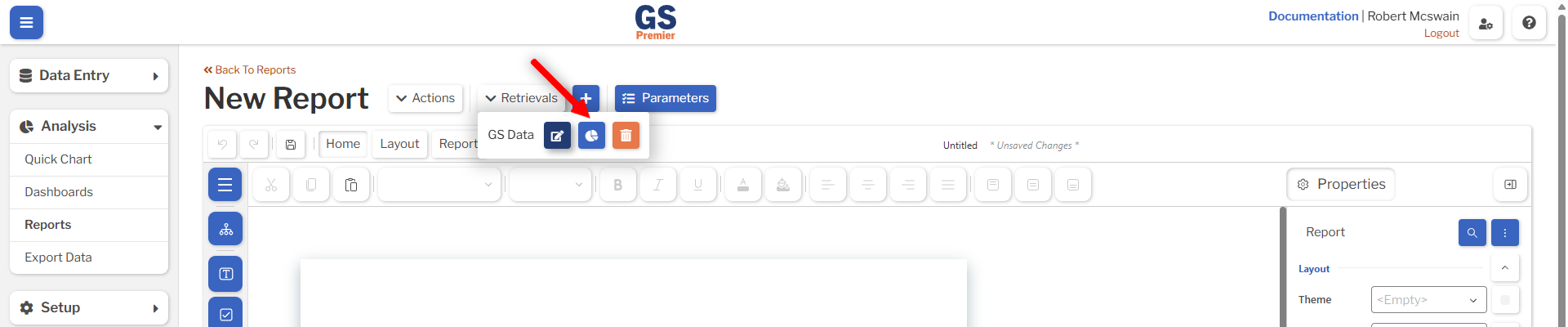
Each Retrieval in a Report is linked to a set of Retrieval-Report Settings. The data, statistics, and charts available to the Report for each Retrieval are determined by these settings. The overlay for these settings is automatically displayed when a Retrieval is created. The settings can also be edited by clicking the Select Data Types, Statistics, and Charts button from the Retrieval dropdown.
| Section | Setting | Description |
|---|---|---|
| SPC | Include Dataset for Raw Data | Whether a Report Data Set should be created containing the SPC data from the Retrieval. |
| SPC | Anticipated Maximum Subgroup Size | The number of Data values to display in the Data Set created for SPC Raw Data. For example, setting this value to 5 will display the following fields: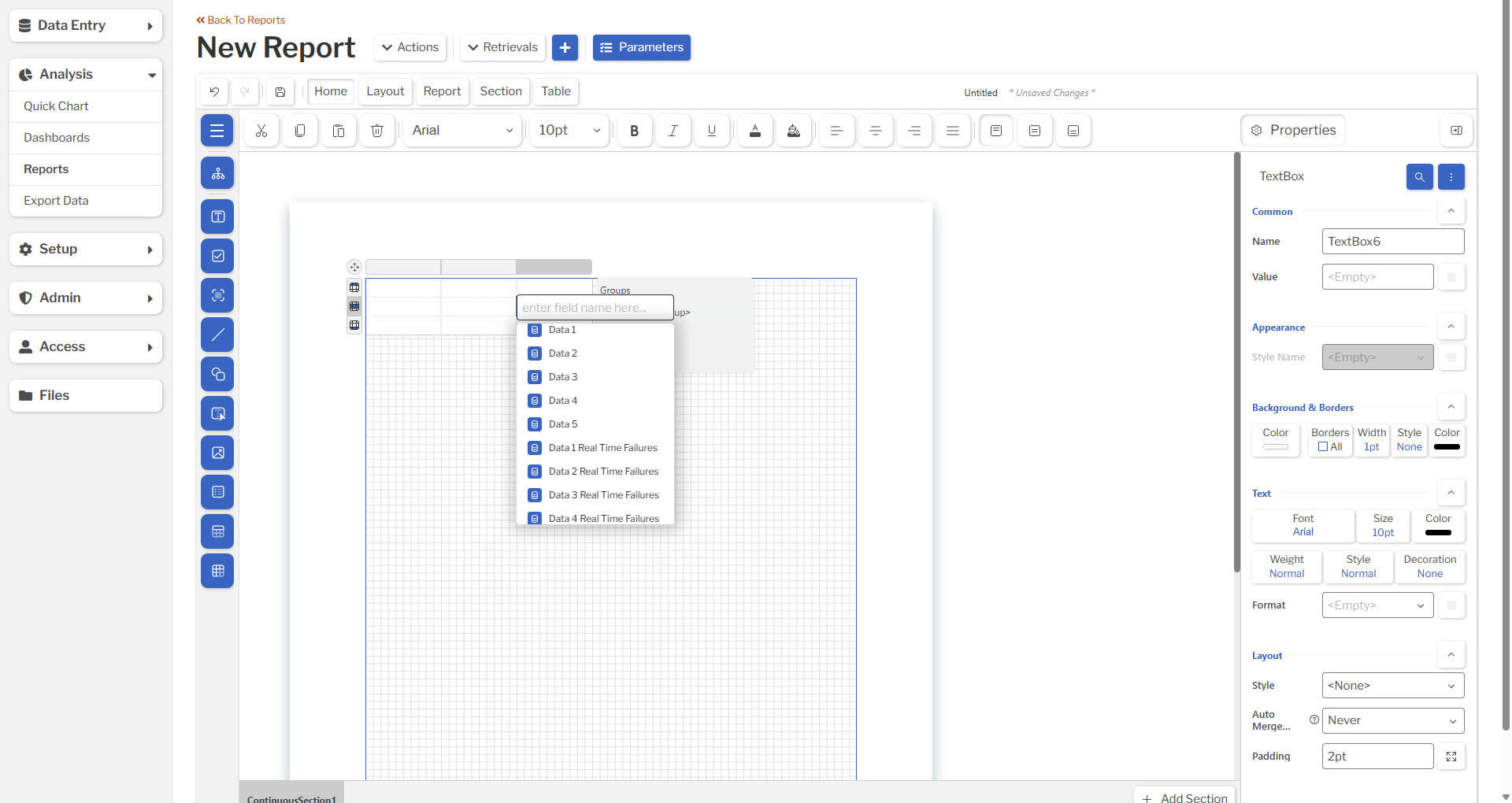 |
| SPC | Charts | The SPC charts to be generated as shared report images. |
| SPC | Charts Split By | Controls how the SPC charts should be split into multiple charts. If Characteristic is in the list, then Short Run will never be performed. |
| SPC | Statistics | The SPC statistics to be included in the Report. If any stats are selected, a Data Set with the suffix - SPC Stats will be created to contain the stats. |
| SPC | Statistics Split By | Controls how the SPC statistics should be split into multiple rows. If Characteristic is in the list, then Short Run will never be performed. |
| DMS | Include Dataset for Raw Data | Whether a Report Data Set should be created containing the DMS data from the Retrieval. |
| DMS | Anticipated Maximum Number of Defects | The number of Defects and Defect Counts to display in the Data Set created for DMS Raw Data. For example, setting this value to 5 will display the following fields: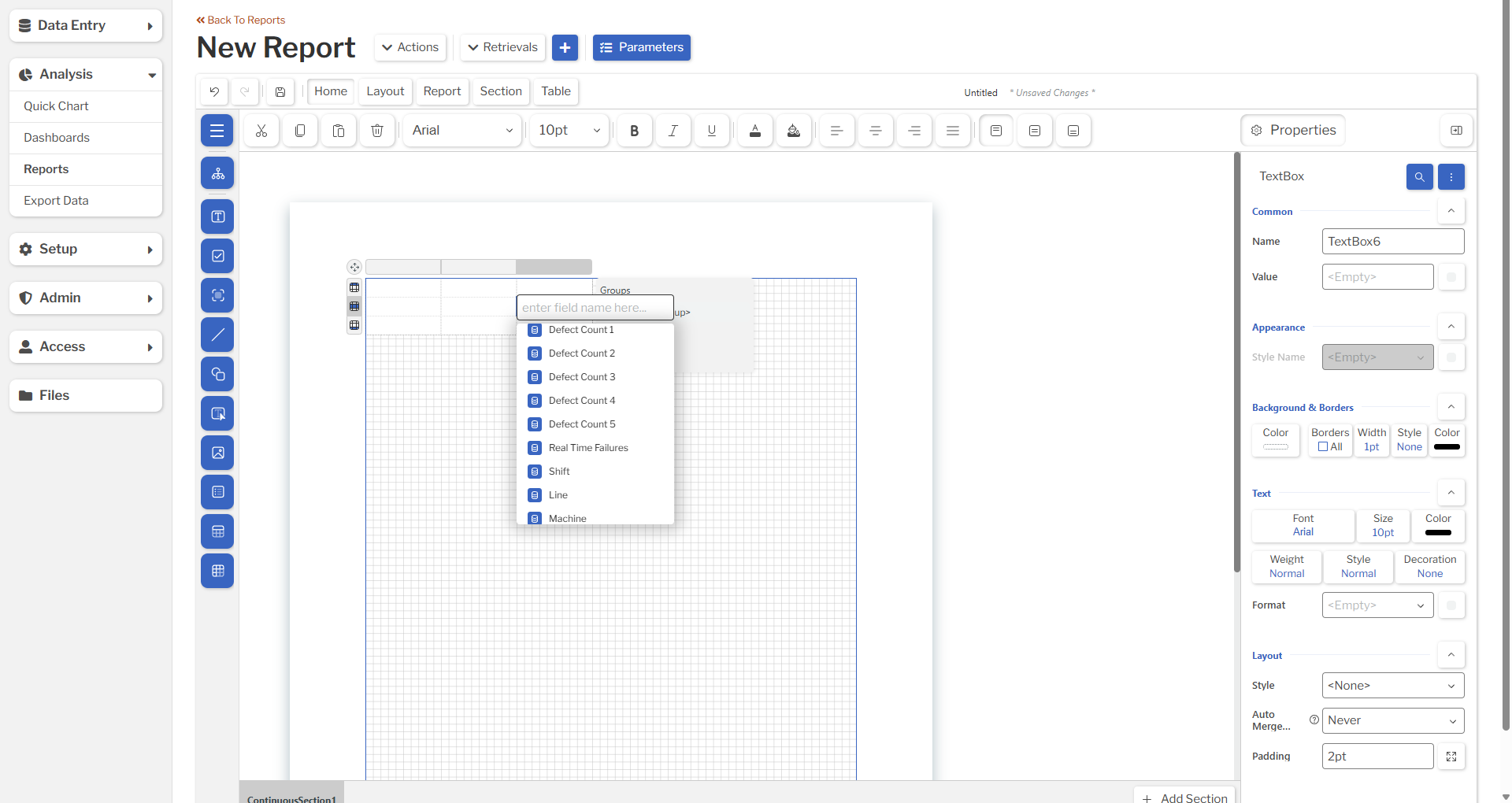 |
| DMS | Charts | The DMS charts to be generated as shared report images. |
| DMS | Charts Split By | Controls how the DMS charts should be split into multiple charts. |
| DMS | Statistics | The DMS statistics to be included in the Report. If any stats are selected, a Data Set with the suffix - DMS Stats will be created to contain the stats. |
| DMS | Statistics Split By | Controls how the DMS statistics should be split into multiple rows. |
| OEE | Include Dataset for Raw Data | Whether a Report Data Set should be created containing the OEE data from the Retrieval. |
| OEE | Charts | The OEE charts to be generated as shared report images. |
| OEE | Charts Split By | Controls how the OEE charts should be split into multiple charts. |
| OEE | Statistics | The OEE statistics to be included in the Report. If any stats are selected, a Data Set with the suffix - OEE Stats will be created to contain the stats. |
| OEE | Statistics Split By | Controls how the OEE statistics should be split into multiple rows. |
| Task | Include Dataset for Raw Data | Whether a Report Data Set should be created containing the Completed Task data from the Retrieval. |
Previewing Reports
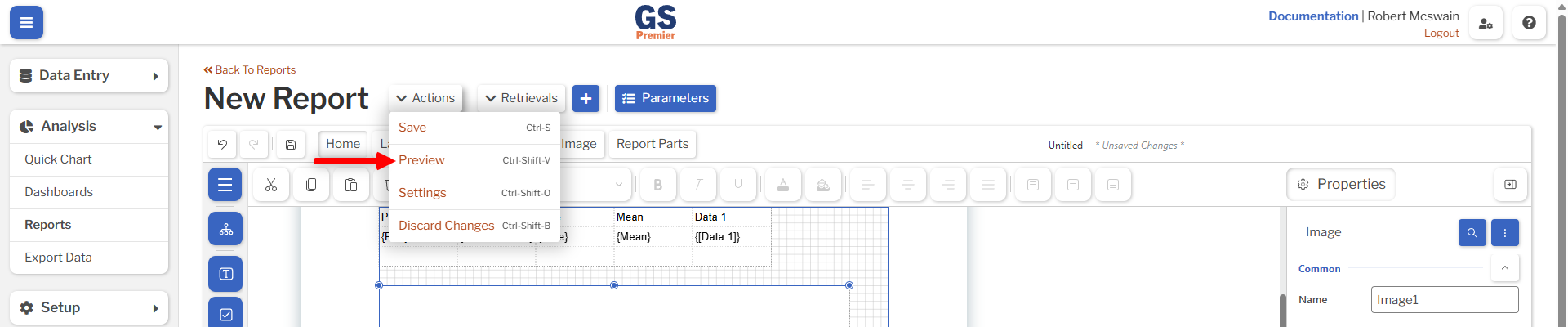
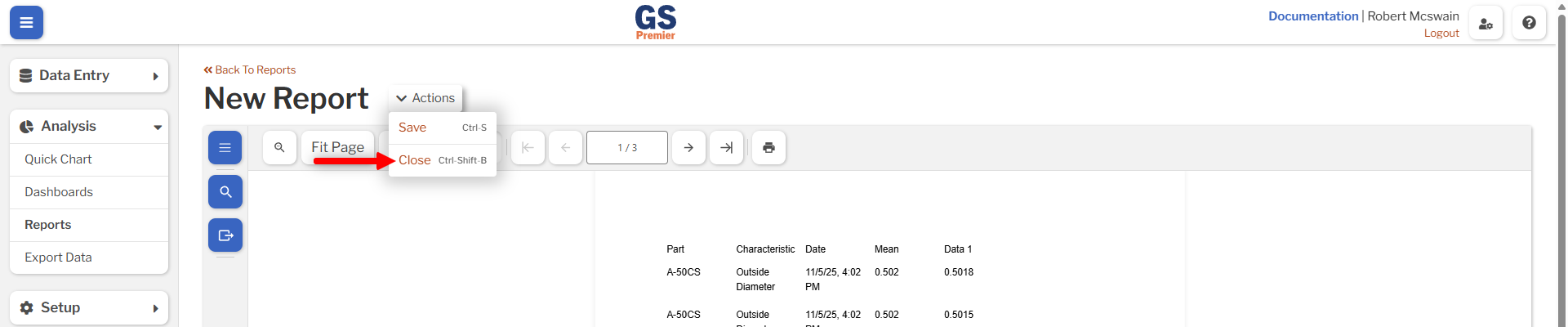
When designing a Report, the Preview button can be used to view the Report in its current state. Use the Close button from the Report Viewer to return to the Report Designer.
Viewing Reports
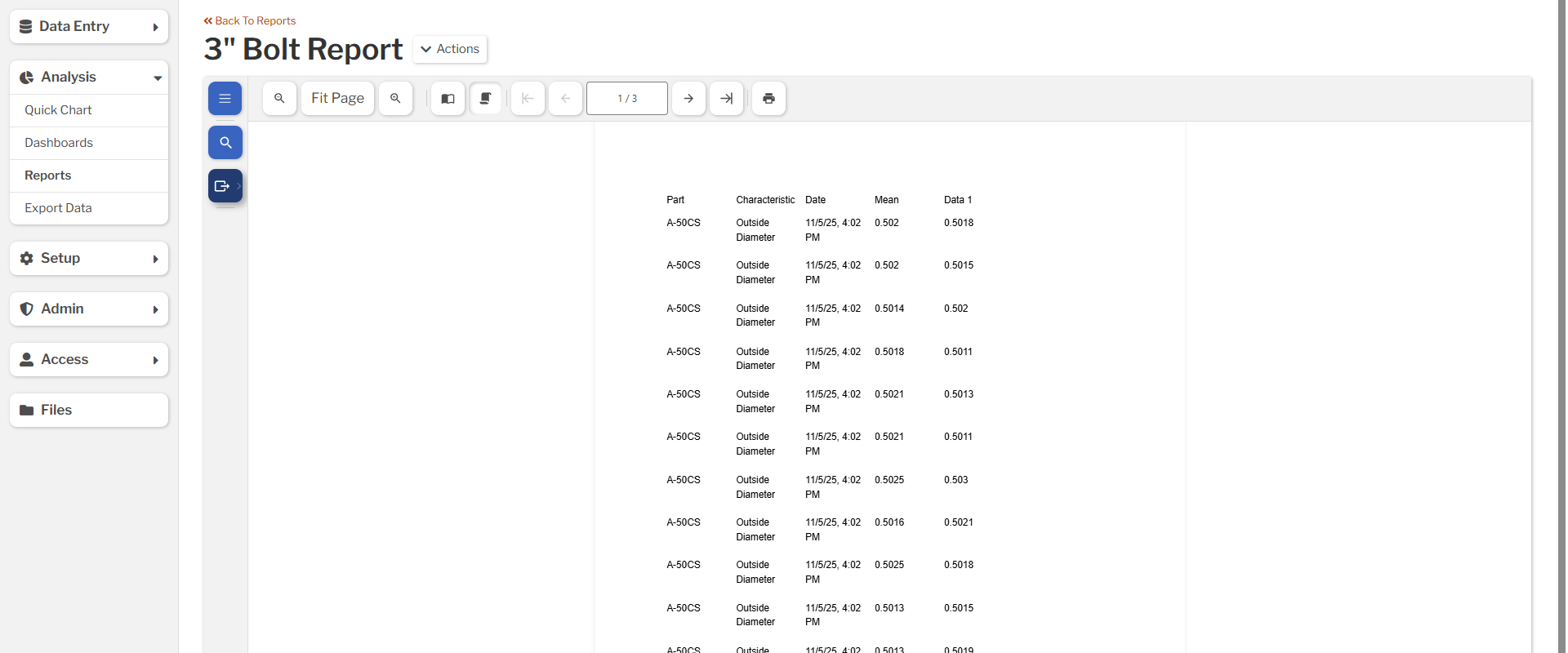
The Report Viewer is used to display a Report in its paged form. The buttons in the Viewer's toolbar may be used to change the zoom, scroll behavior, currently-viewed page, and to print the Report.
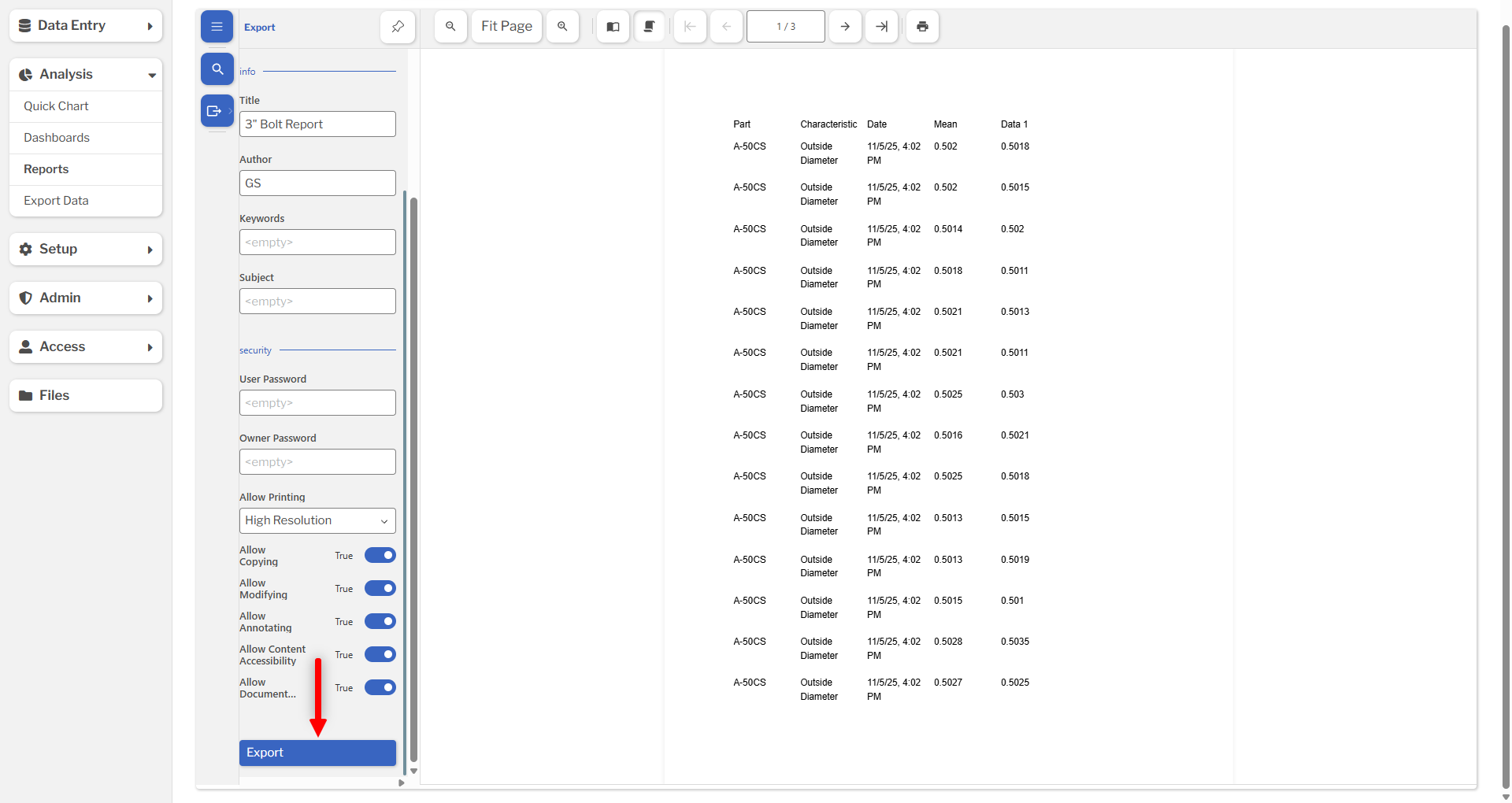
Reports may be exported to PDF, CSV (called Tabular data), or HTML by selecting the Export button in the side menu, selecting the Format, and then selecting the Export button at the bottom of the menu.