Cost Analysis
In addition to performing Defect Analysis, GS can also perform analysis to determine the total cost of Defects and NCU, as well as assisting in finding the largest source of these costs.
In this guide, we will look at the total Defect and NCU cost for each Part, and determine which Material is responsible for the highest costs.
Prerequisites
This guide assumes that you have Costs set up, and have inserted data. If you do not meet these pre-requisites, first follow the Collecting Cost Data guide first.
Create the Dashboard
To begin, create a new Dashboard. The fastest way to create a new Dashboard is to navigate to the Quick Chart menu entry, which acts as a shortcut for a new Dashboard.
Add a Retrieval
Next, add a Retrieval:
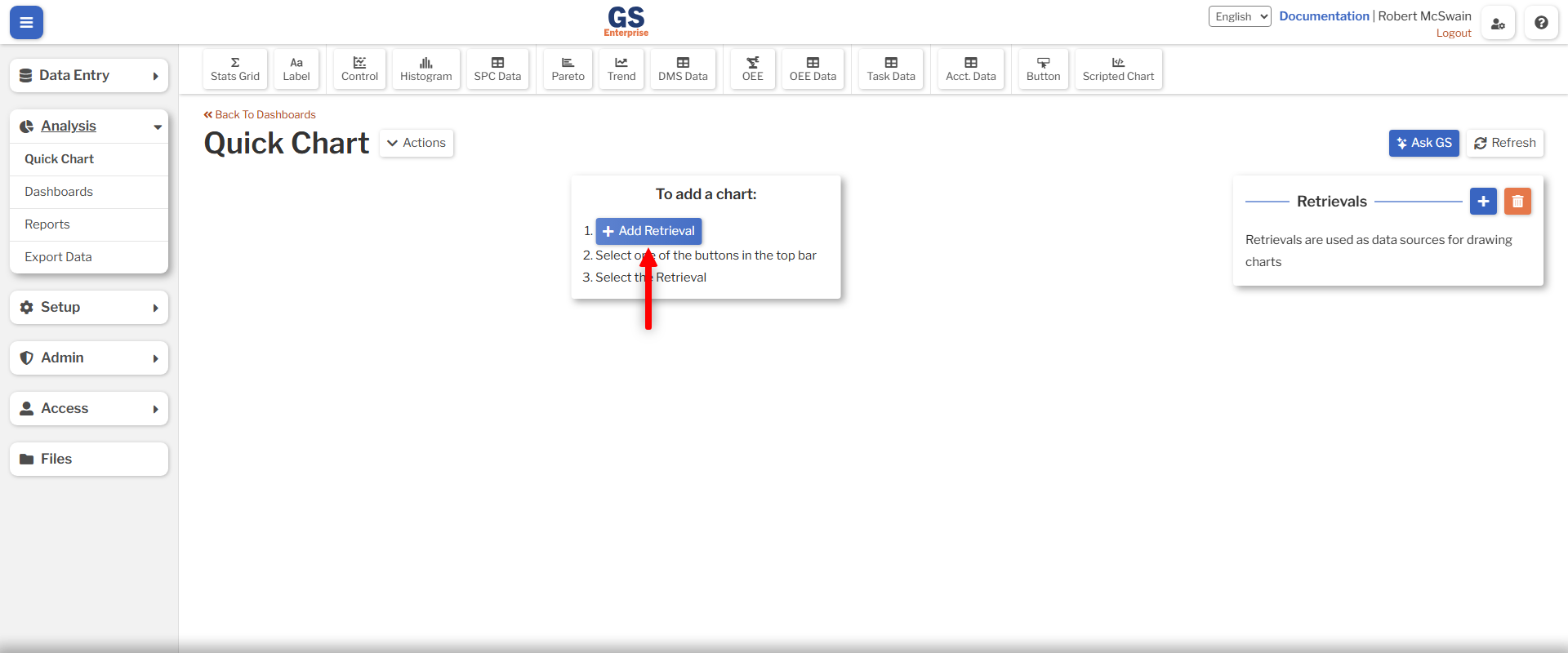
- Press the Add Retrieval button.
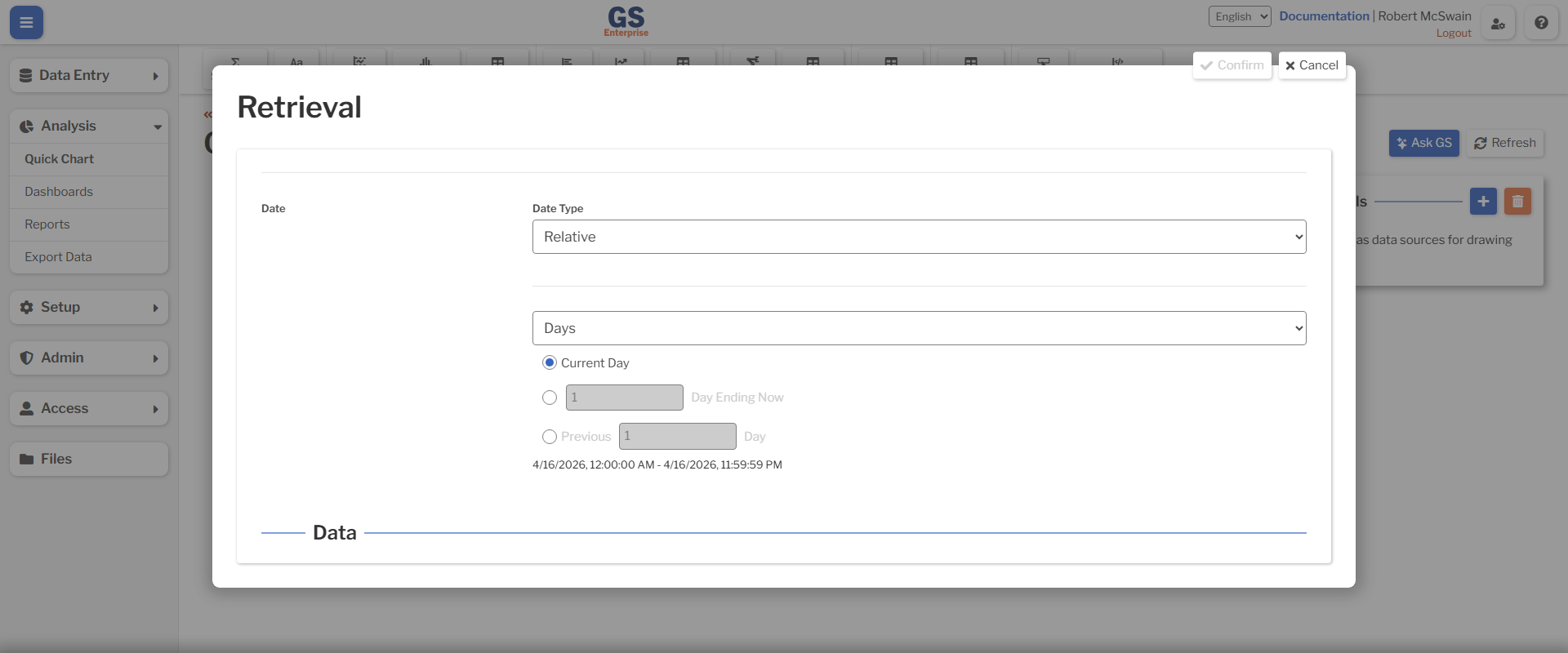
- Fill in the Retrieval Name with Cost Data.
- Leave the date as Current Day.
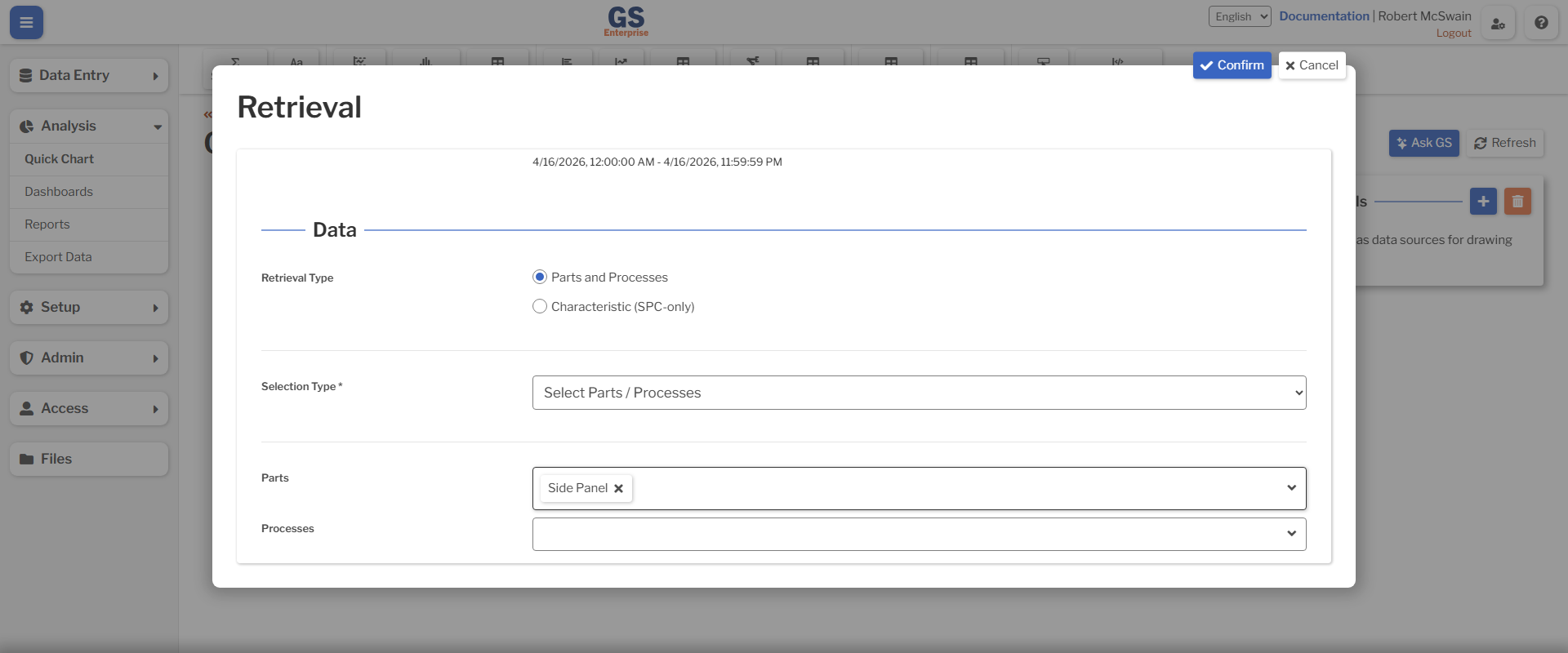
- Select the Parts to analyze in the Parts field.
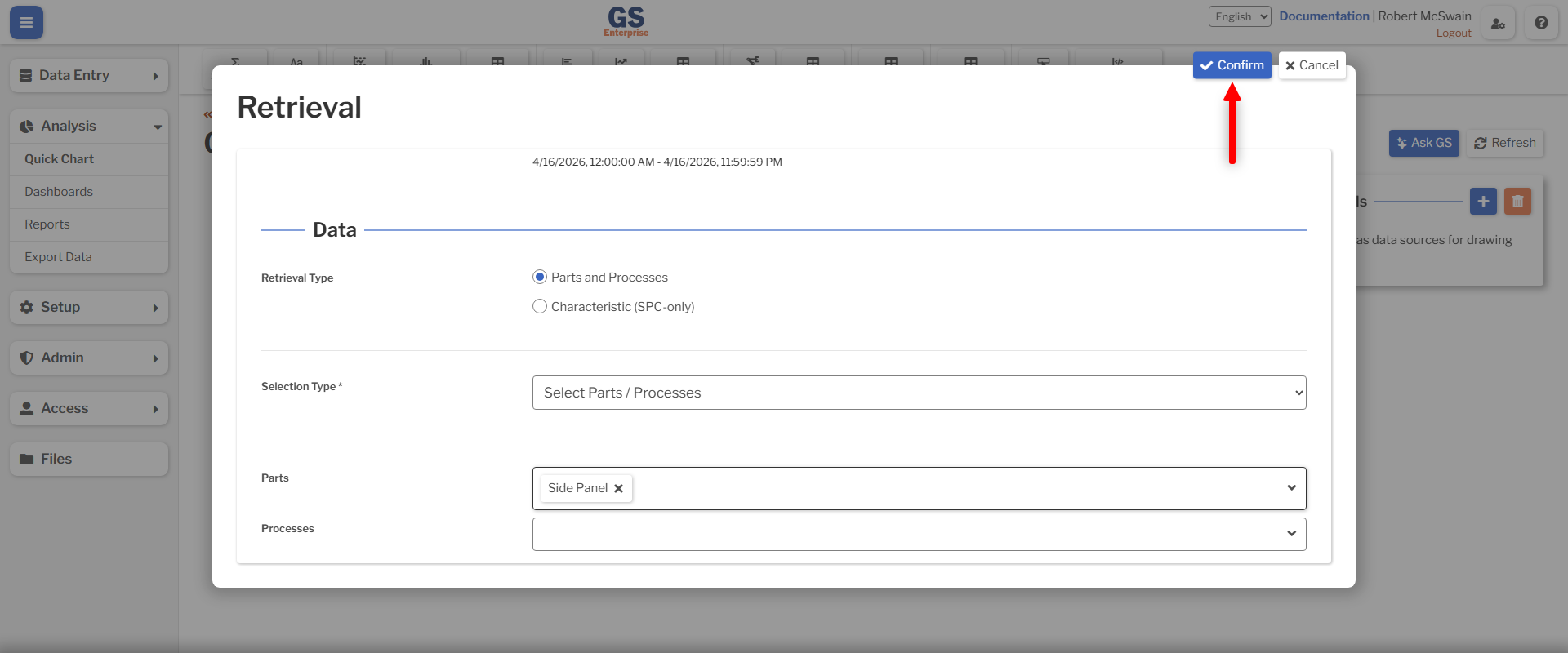
- Press Confirm.
Displying Total Costs
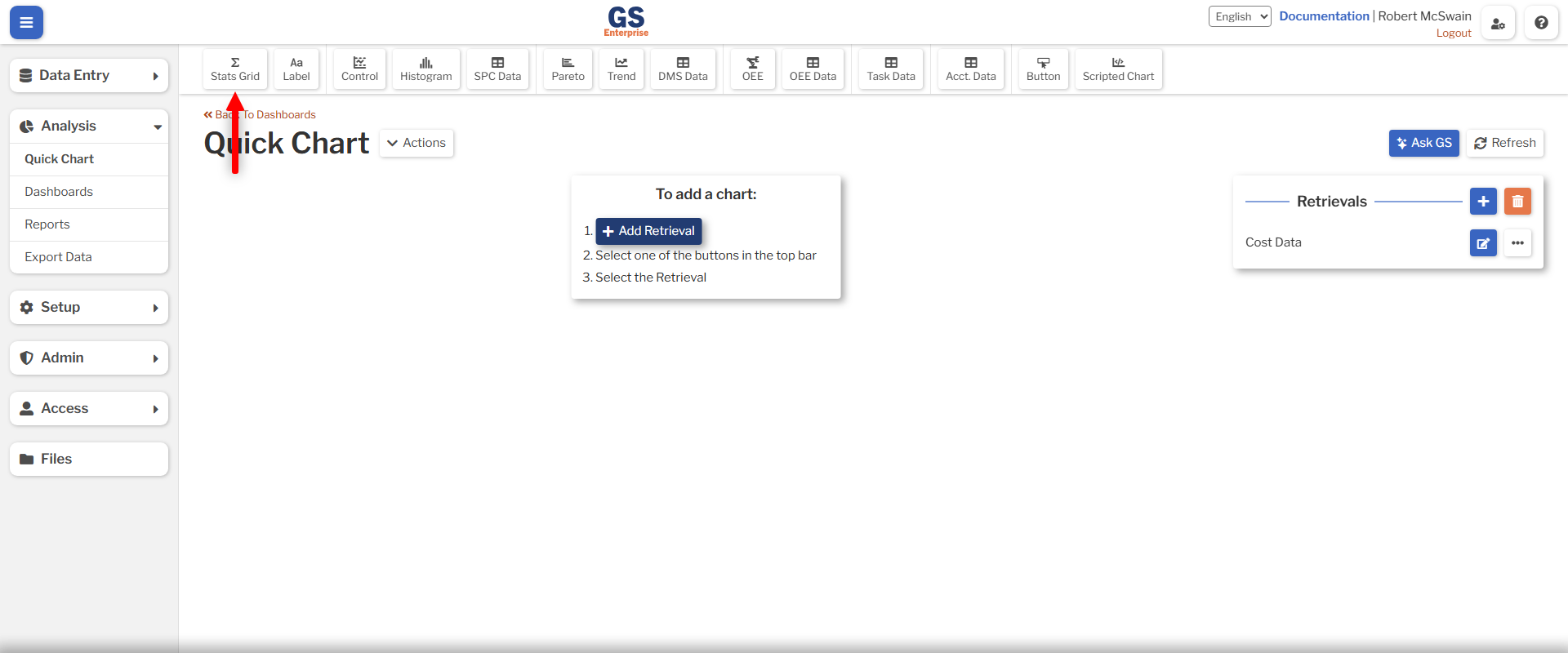
In order to display the Defect and NCU costs for each Part, we will use a Stats Grid.
- Press the Stats Grid button.
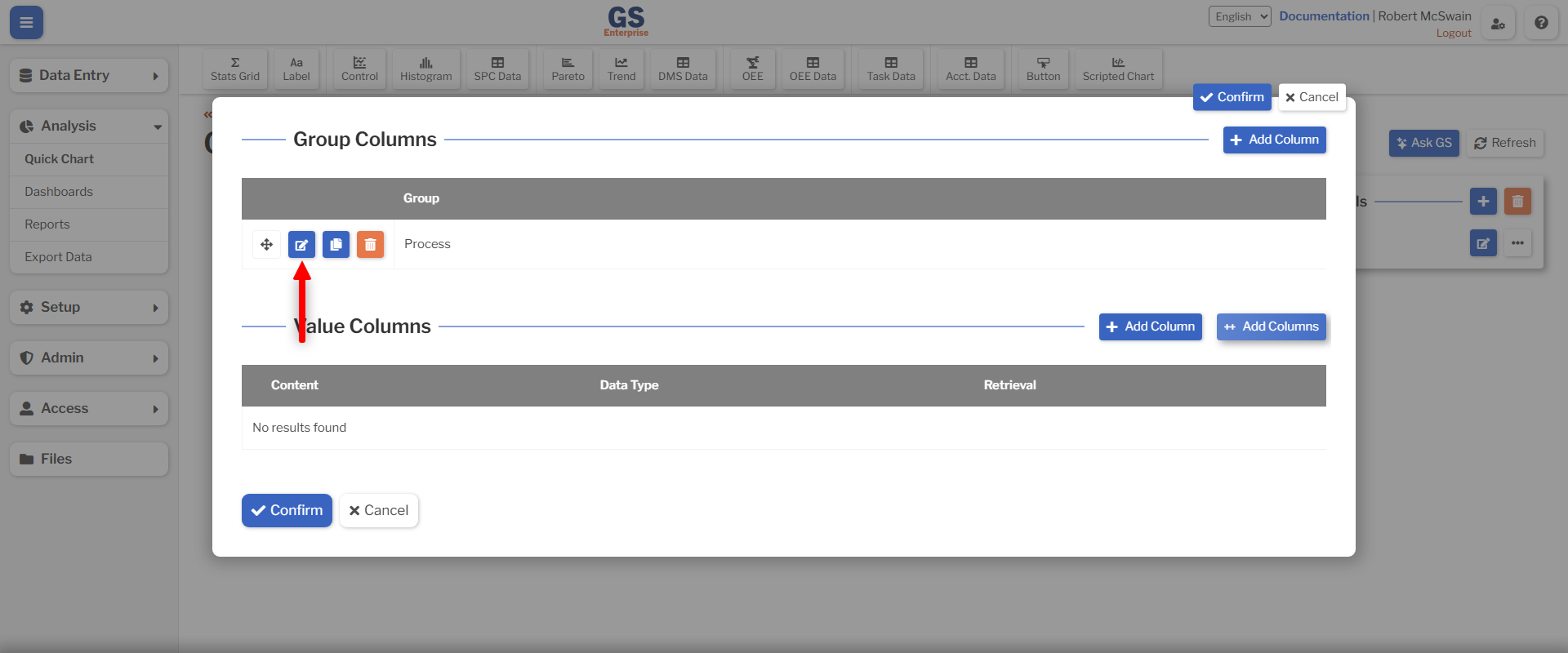
- Change the Process Group Column to Part.
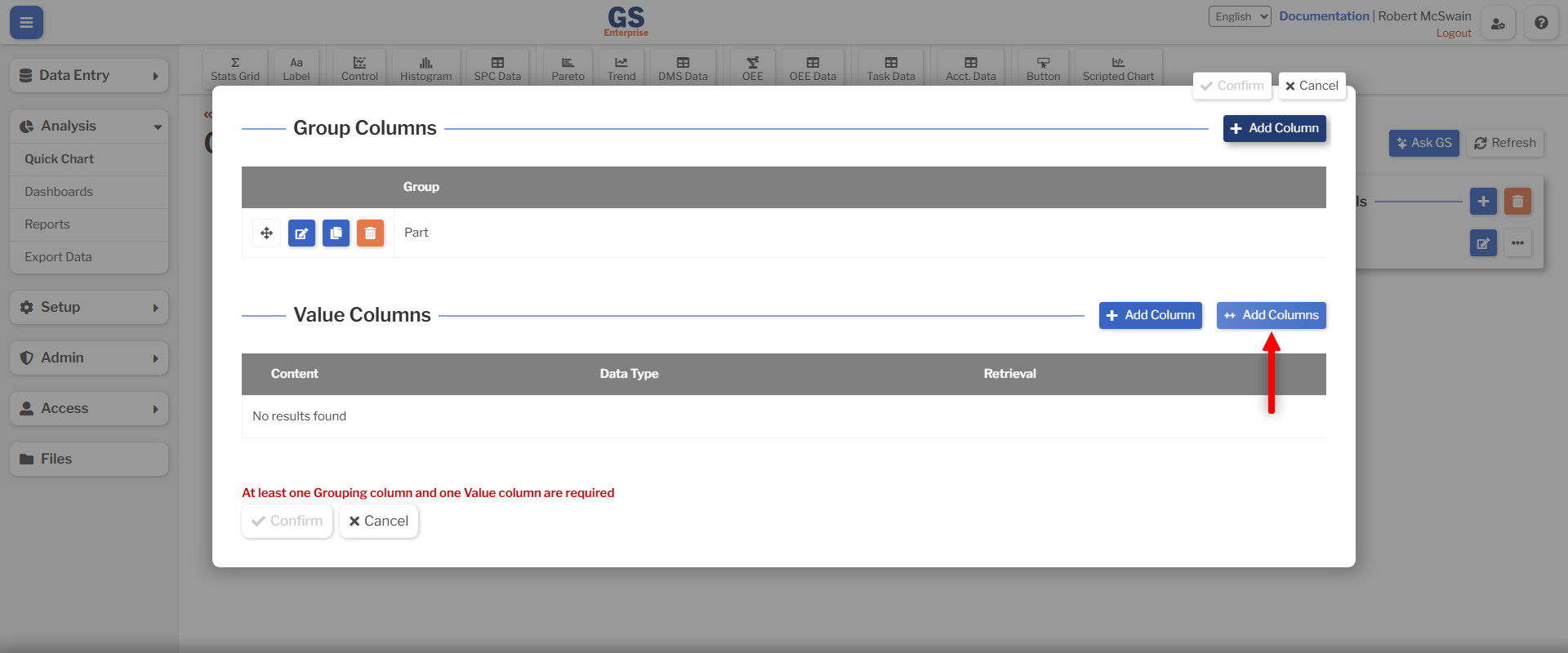
- Press Add Columns in the Value Columns section.
- Change the Data Type to DMS.
- Select Sum Defect Cost and Sum NCU Cost.
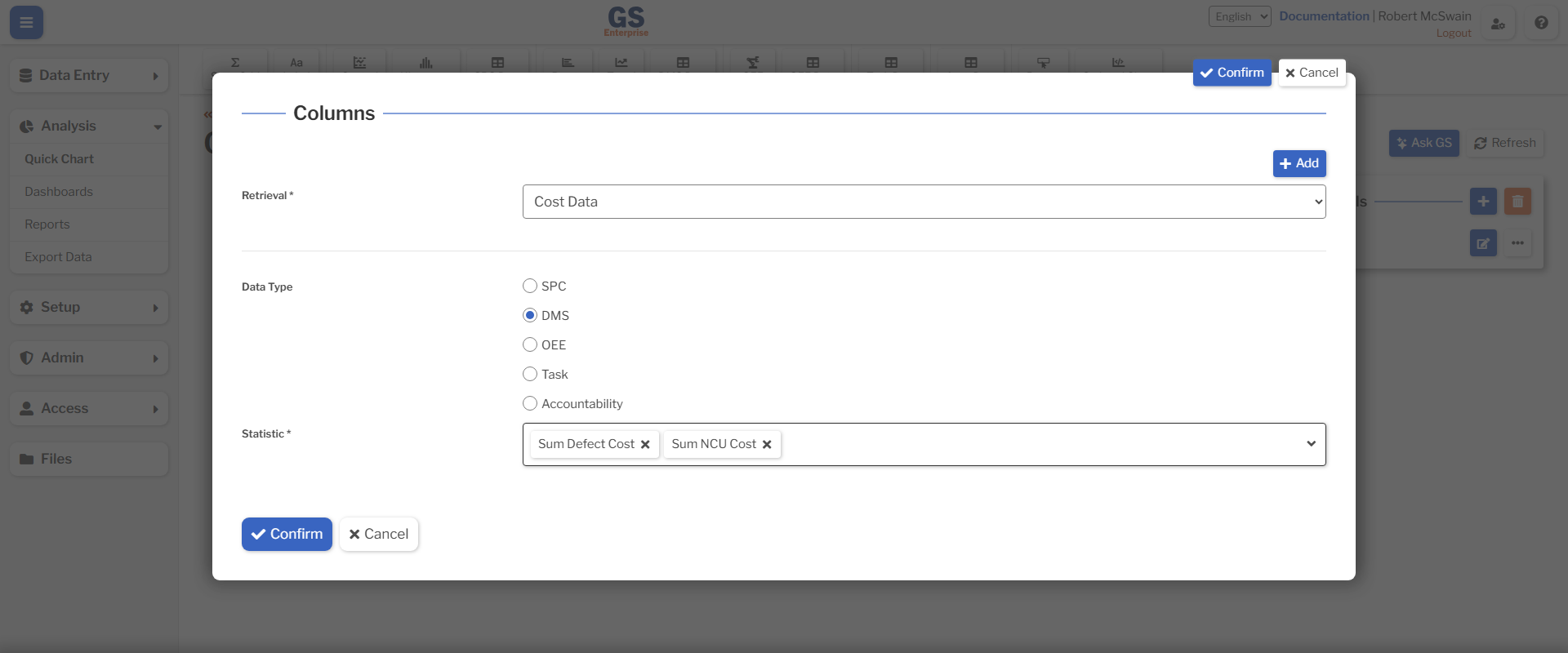
- Press Confirm.
- Press Confirm on the next overlay.
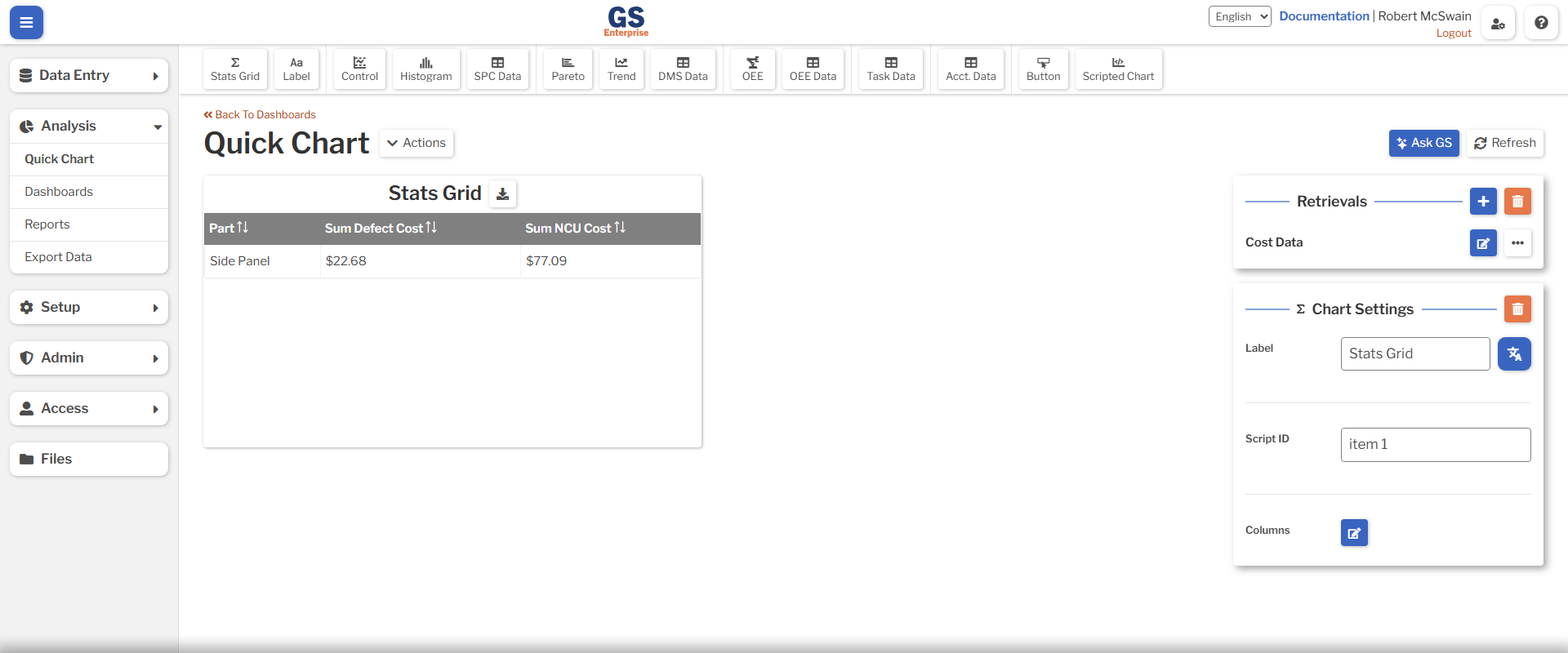
You should now see a table containing the costs for the selected Part. This can be used to determine which Parts are incurring the highest cost due to rework (Defects) or scrap (NCU).
Finding the Source of Costs
While seeing the total cost for each Part can provide valuable insight, GS also provides assistance in determining the source of those Costs.
Defect Cost Pareto
In order to determine which material is responsible for the highest rework cost, add a Pareto Chart:
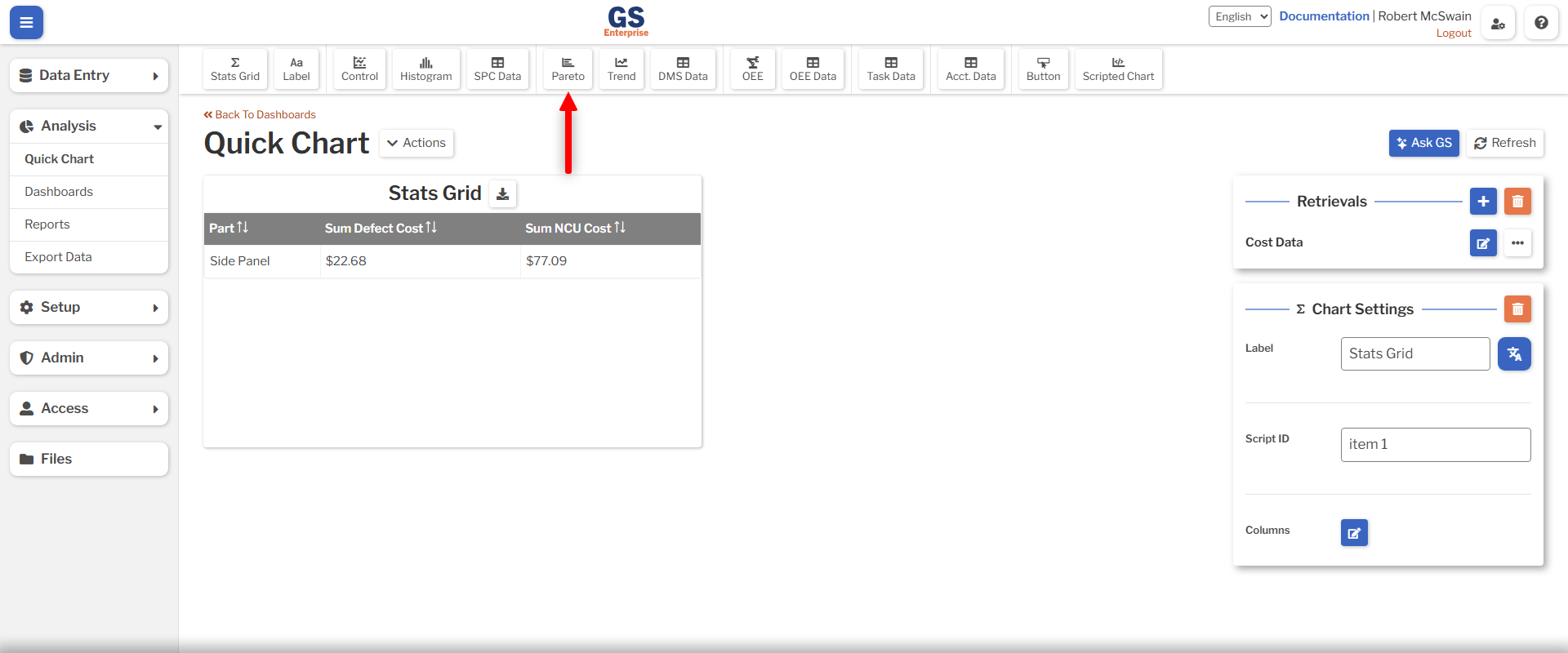
- Click the Pareto button in the toolbar to create a new Pareto chart.
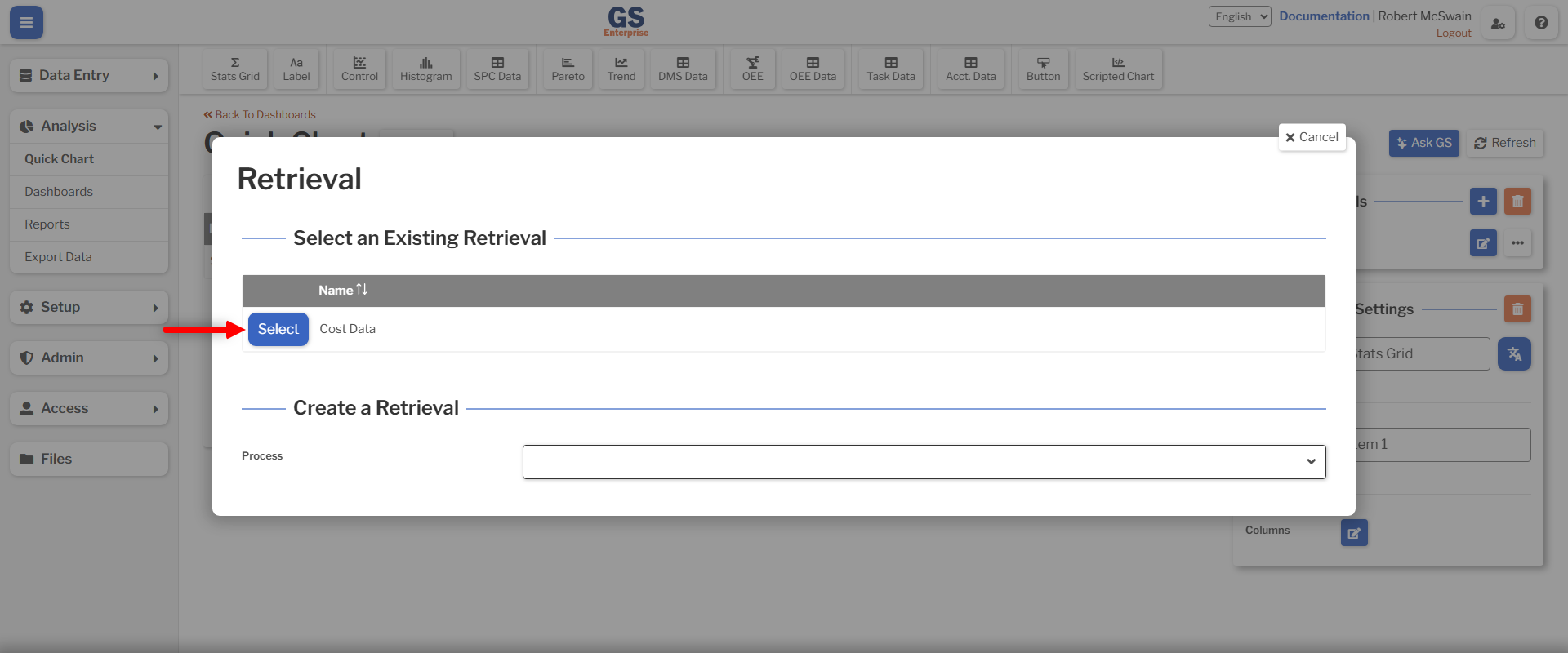
- In resulting overlay, click the Select button next to the name of your retrieval. This will fill in the chart with the defect data from that Retrieval.
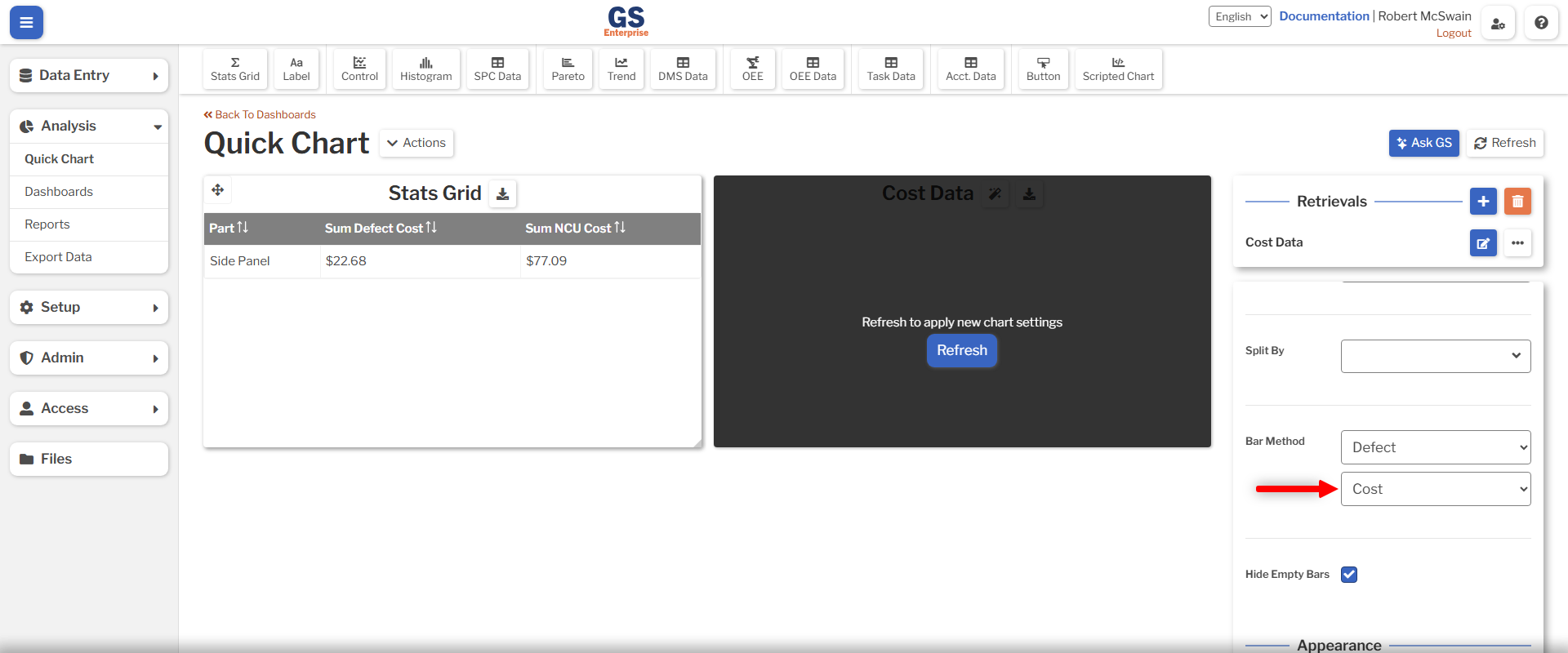
- Change the Bar Method to Cost.
- Click the Refresh button.
You will now see a Pareto Chart where each bar is the percentage that each Defect contributes to the total cost of all Defects.
In order to determine which material is responsible for the highest cost, change the Group By to Material. Now, each bar represents the cost of each material.
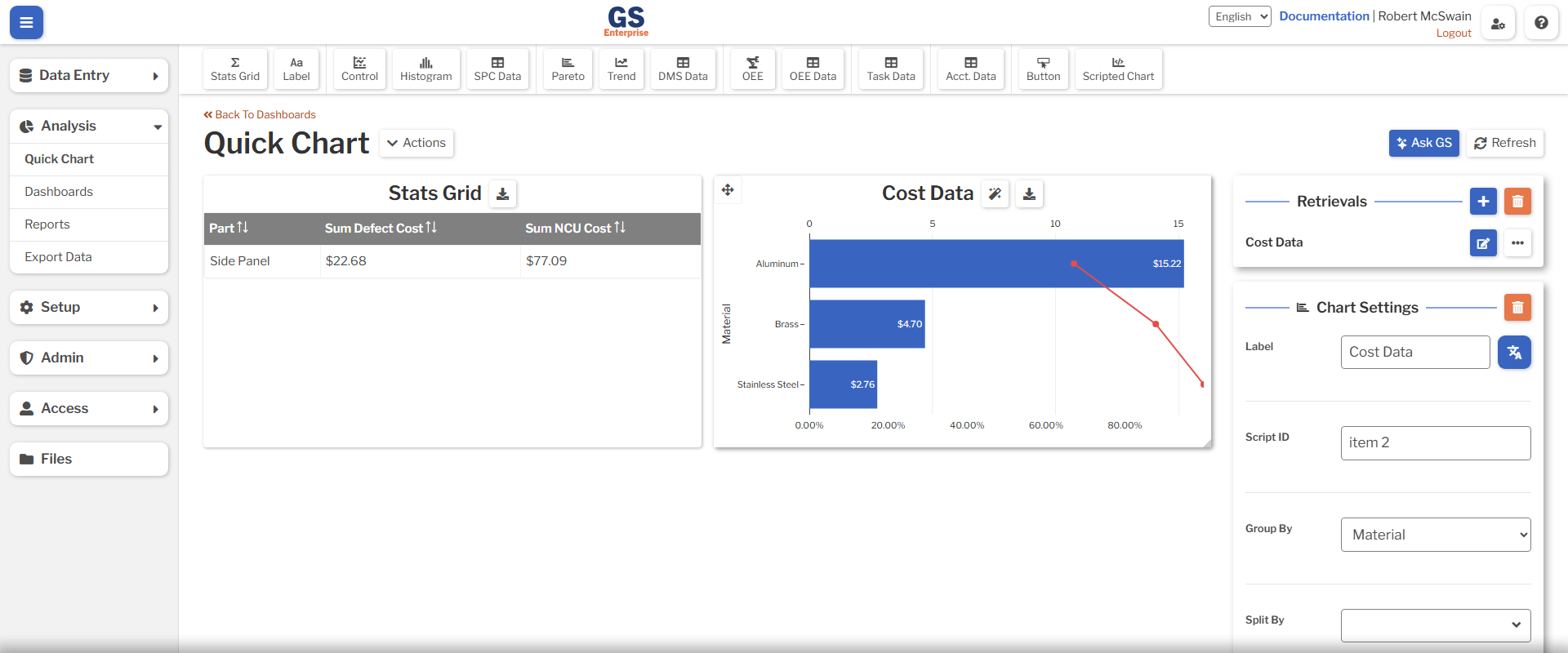
Alternatively, you may click on the bar for any Defect to drill into the Material costs for that specific Defect. This can be done multiple times, and is useful for narrowing down the source of costs.
NCU Cost Pareto
In order to determine which material is causing the most scrap, add another Pareto Chart:
- Click the Pareto button in the toolbar to create a new Pareto chart.
- In resulting overlay, click the Select button next to the name of your retrieval. This will fill in the chart with the defect data from that Retrieval.
- Change the Bar Method to NCU Cost.
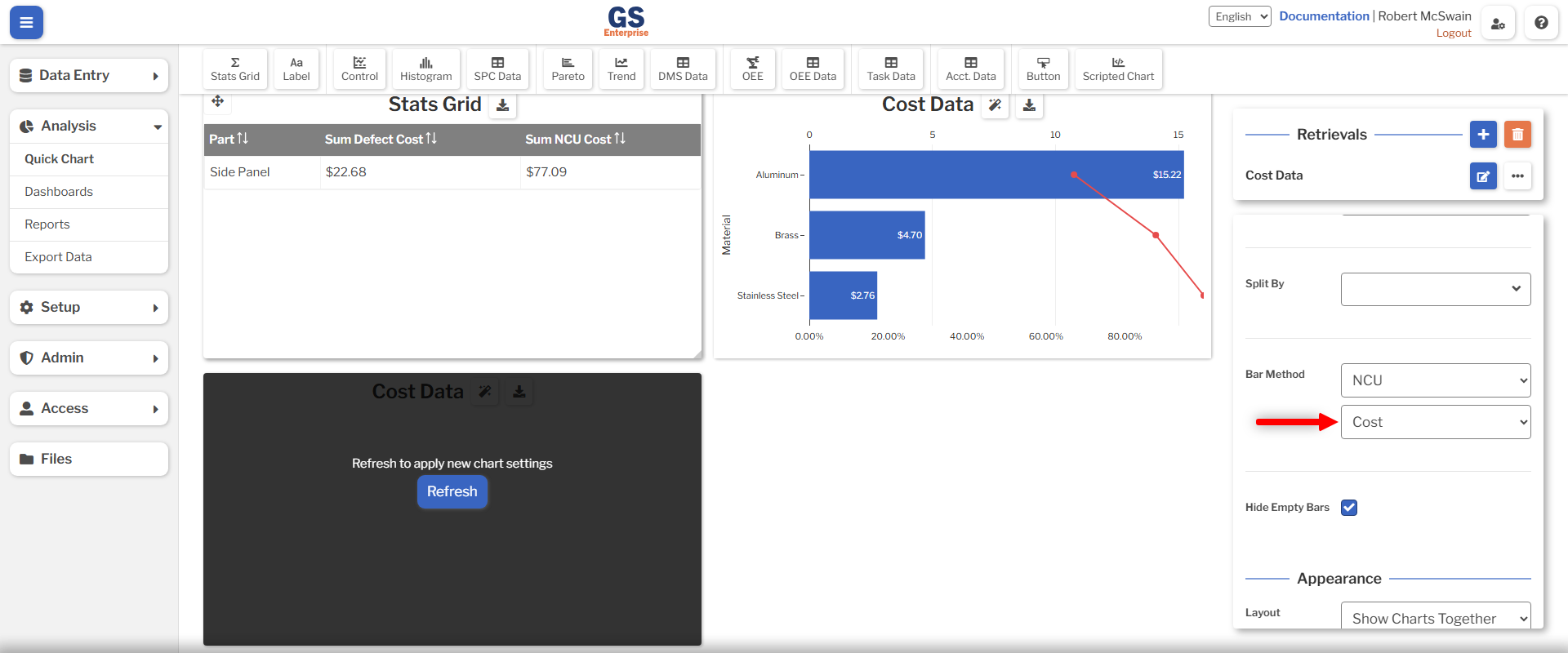
- Change the Group By to Material.
- Click the Refresh button.
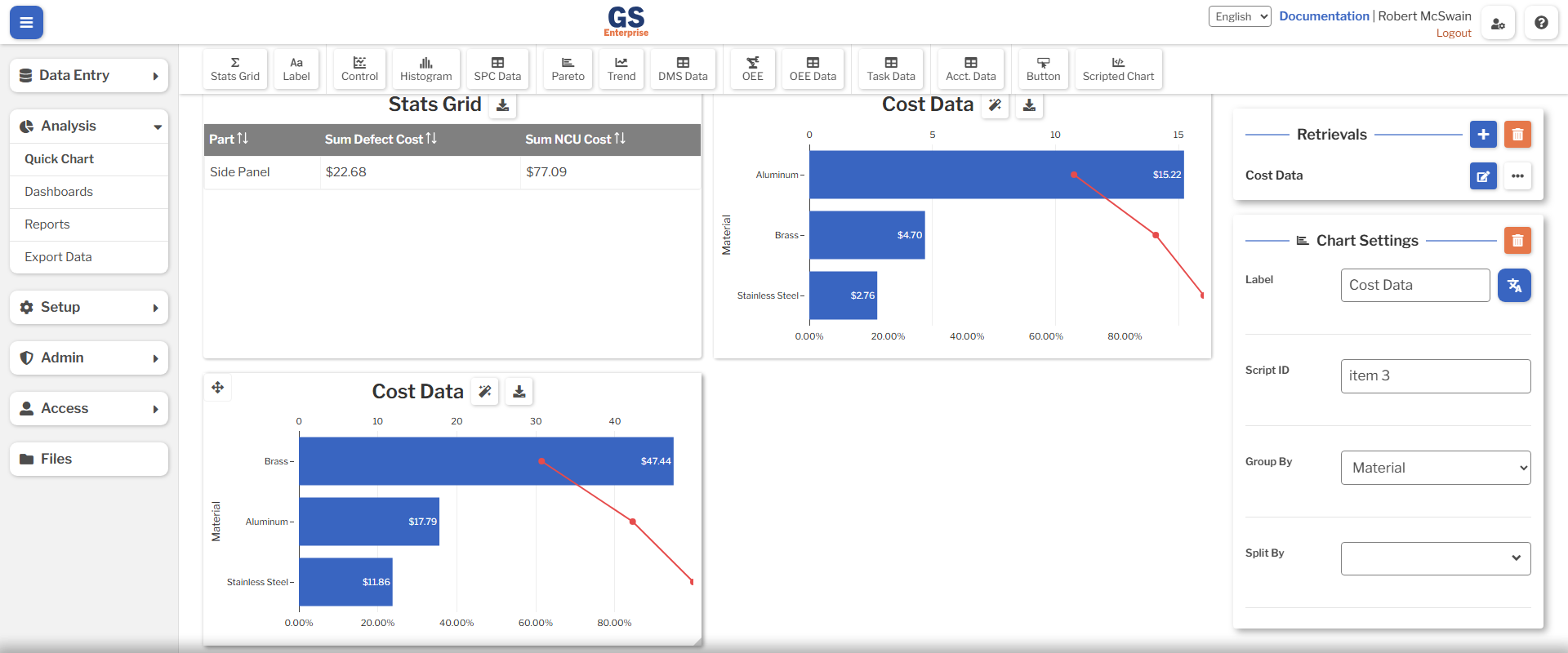
This gives a Pareto where each bar represents the scrap cost from each material.
Conclusions
From these few charts, it's easy to see that Aluminum is causing the highest cost due to Defects, and Brass is causing the highest cost due to scrap.
From here, you can drill into those bars to determine whether there is a particular cause (e.g. Shift, Operator, Line, or Machine) that is responsible for these costs. It may also be worth checking equipment to ensure that appropriate tooling and settings are being used for each Material.