Collecting Cost Data
While GS provides a powerful set of tools for tracking costs without scripting, there are times when additional granularity is required. This includes:
- Tracking cost based on the current material costs.
- Costs which change when overtime pay is in effect.
- Modifying the costs based on the actual amount of material being used.
In each case, the Cost of a Defect or NCU is based on more than the simple combination of Part, Process, and Location. In some cases, it may even require looking up additional information from a third party system.
This guide will walk through collecting Defect and NCU costs in an Inspection. The Defect Costs will be based entirely on the Defect and Part, and will require no scripting. The NCU cost will be based on the Part, but will be dynamically updated with scripting to include the cost of the material used to create the Part.
Prerequisites
This guide assumes that you have created at least one Defect, a Part with a Characteristic, and a Traceability. This guide will use the Defects Chipped, Scratched, and Cracked. All data in this guide will be stored for the Part Side Panel, which contains the Characteristic Panel Weight, and will use the Material Traceability. The Material Traceability will be restricted to only allow the following options:
- Brass
- Aluminum
- Stainless Steel
This guide will treat the Chipped and Scratched Defects as being available for rework, and the Cracked Defect will cause the Part to be scrapped.
Create Costs
Begin by creating the Defect Costs:
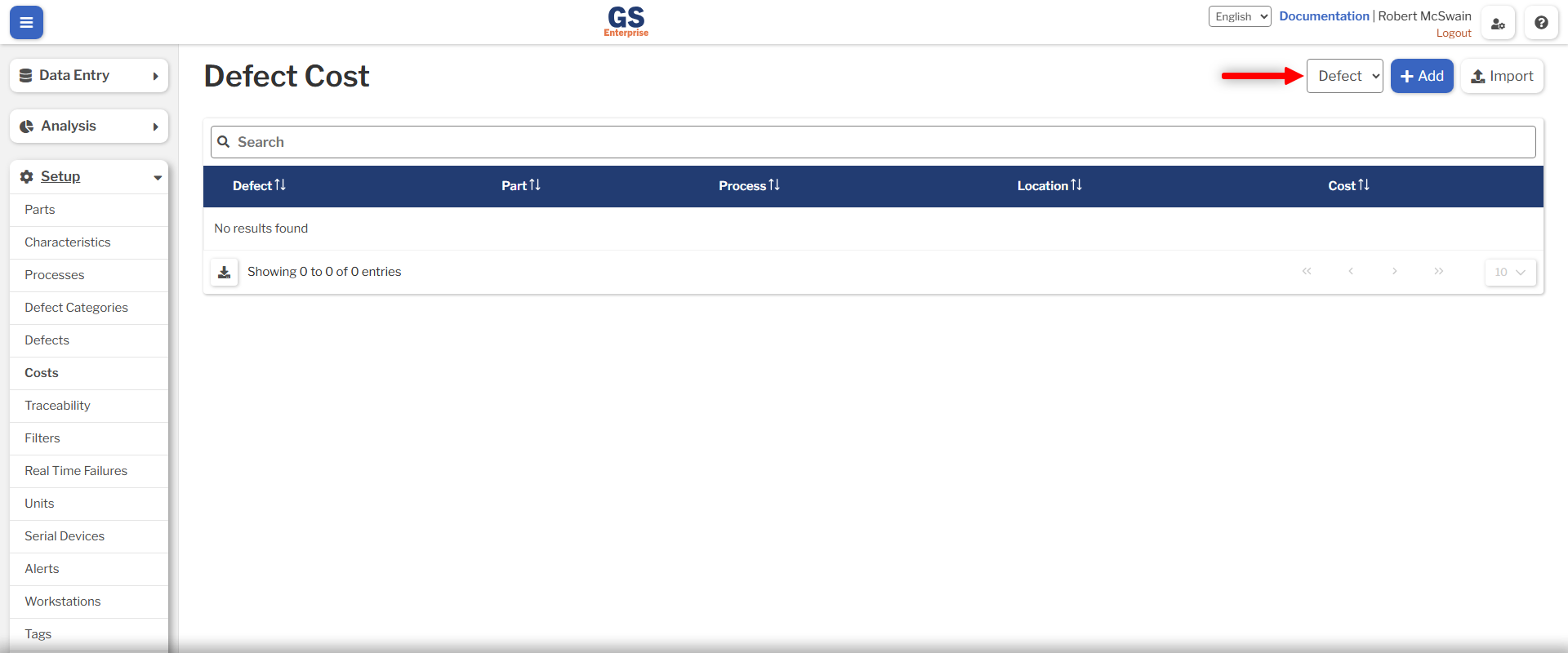
- Navigate to the Costs page.
- Ensure that Defect is selected in the Cost Type selector.
- For the Chipped and Scratched Defects:
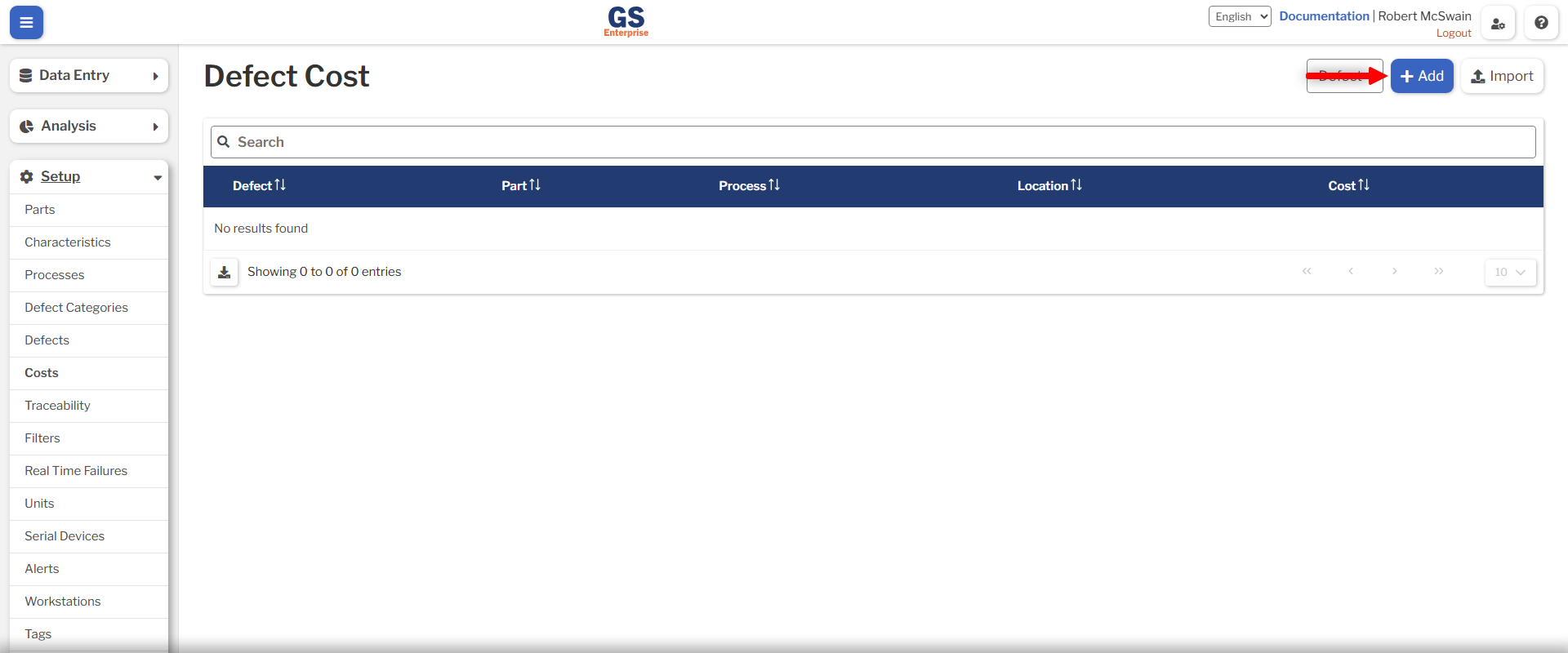
- Press the Add button.
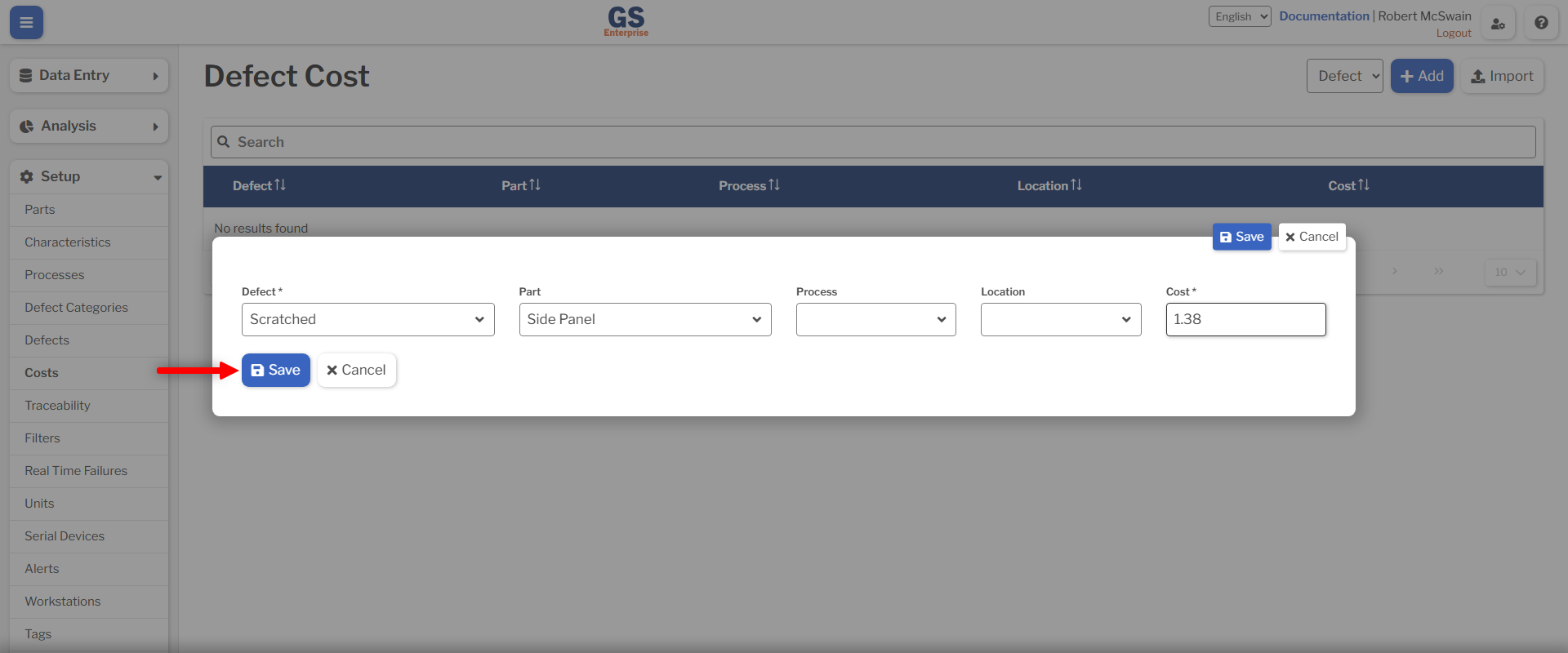
- Select the Defect.
- Select the Side Panel Part.
- Enter a value for the Cost field.
- Press the Save button.
- Press the Add button.
This will create a cost for each Defect when they are stored for the Side Panel Part, in any Process. Note that you may leave the Part blank, and the entered cost will be saved any time that Defect occurs, regardless of the Part stored with the data. See the Cost Reference for information about how a cost is selected for a given data submission.
For this guide, costs are only stored for Chipped and Scratched Defects. The Cracked Defect will cause the Part to be scrapped, and the scrap cost will be tracked separately.
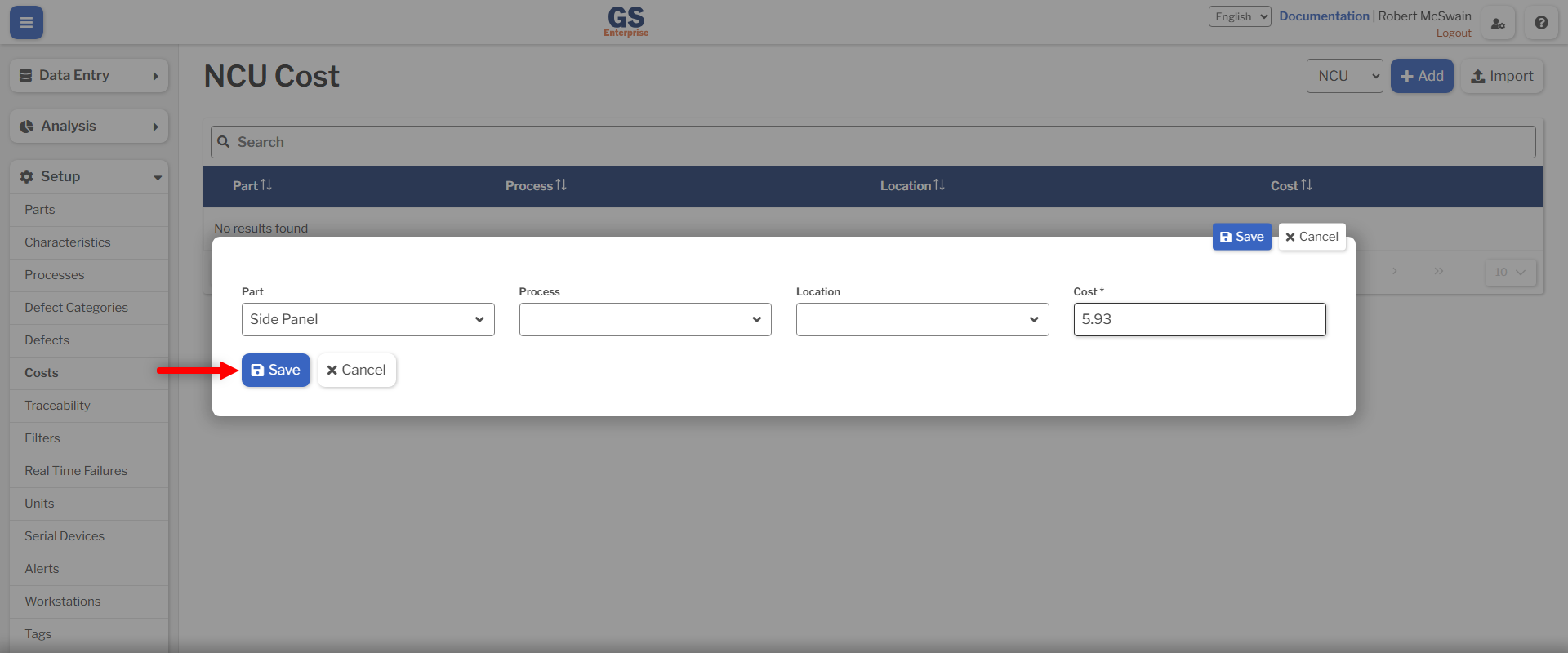
Next, create the base NCU costs. These costs will represent the cost of scrapping a particular Part without the cost of material included. The material cost will be calculated and added in during the Inspection.
- Change the cost type to NCU.
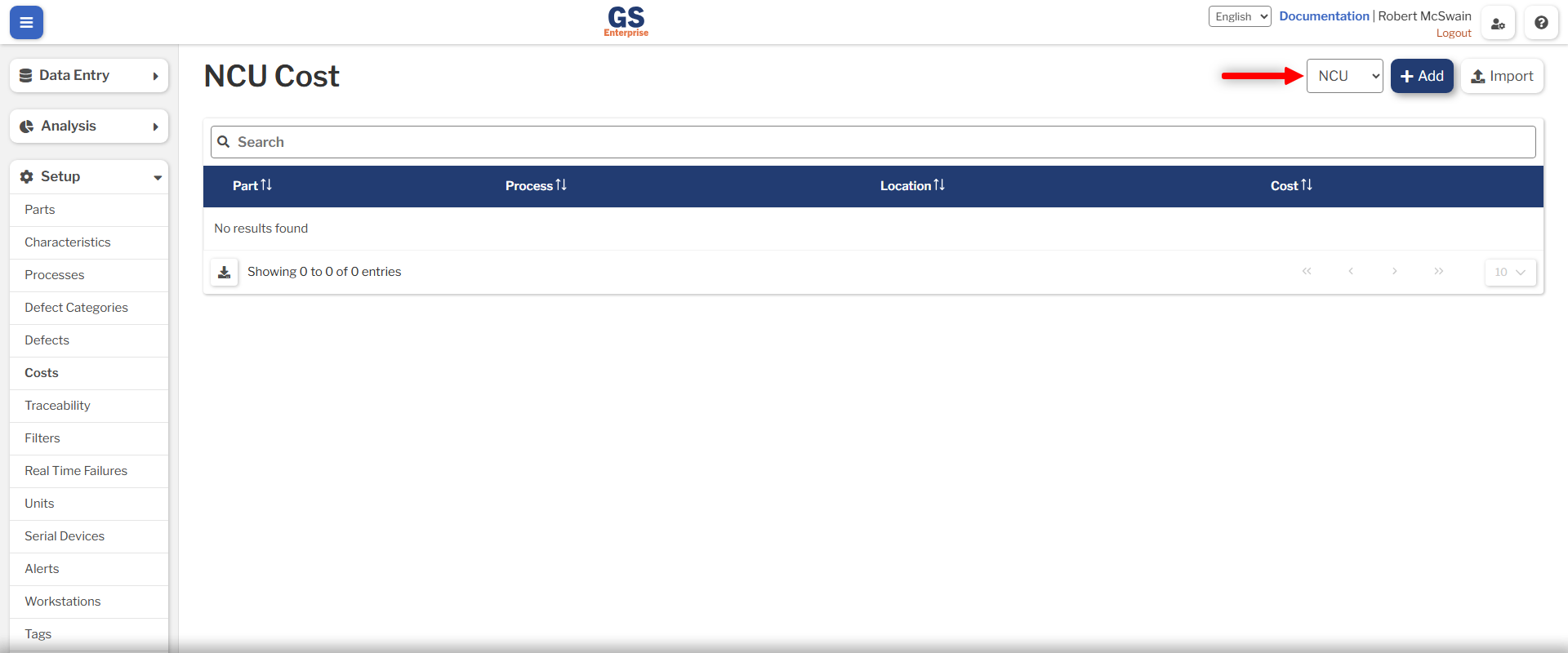
- Press the Add button.
- Select the Side Panel Part.
- Enter a value for the Cost field.
- Press the Save button.
Create the Inspection
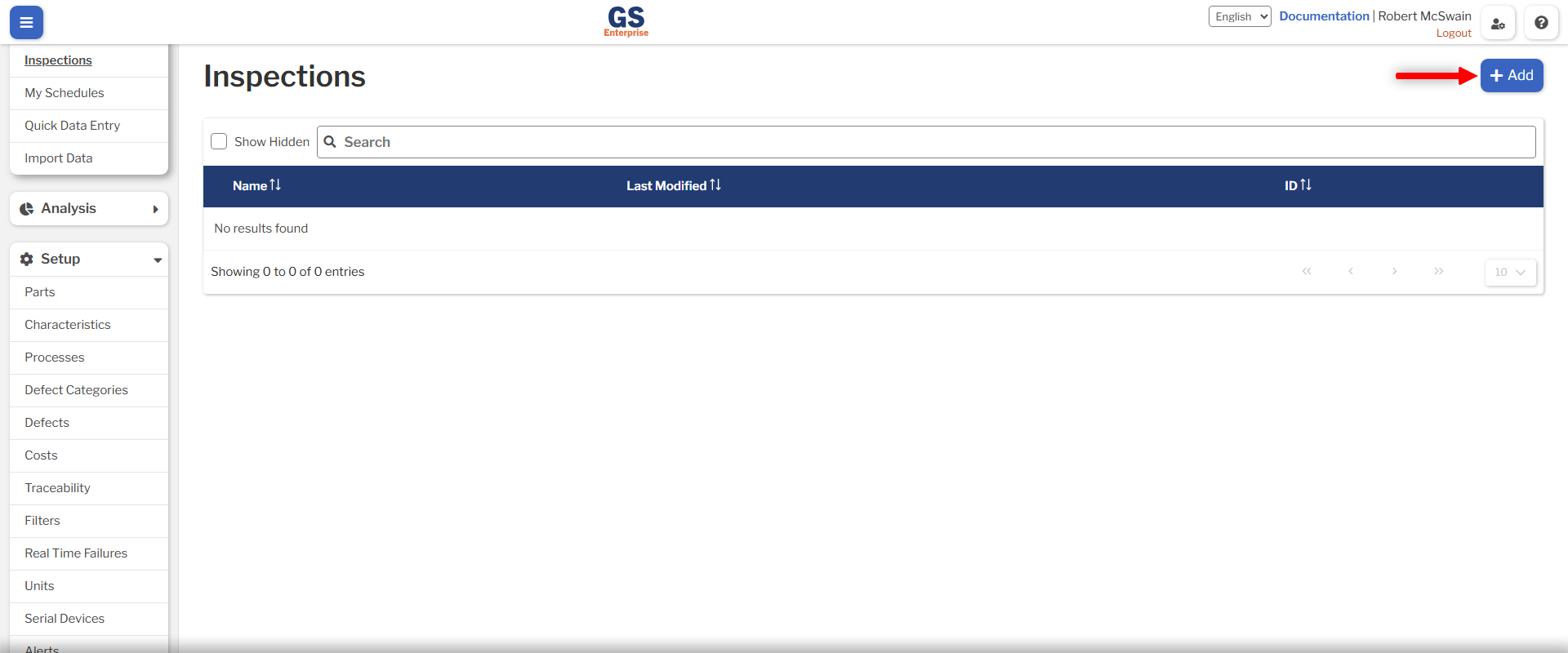
- Navigate to the Inspection list.
- Press the Add button.
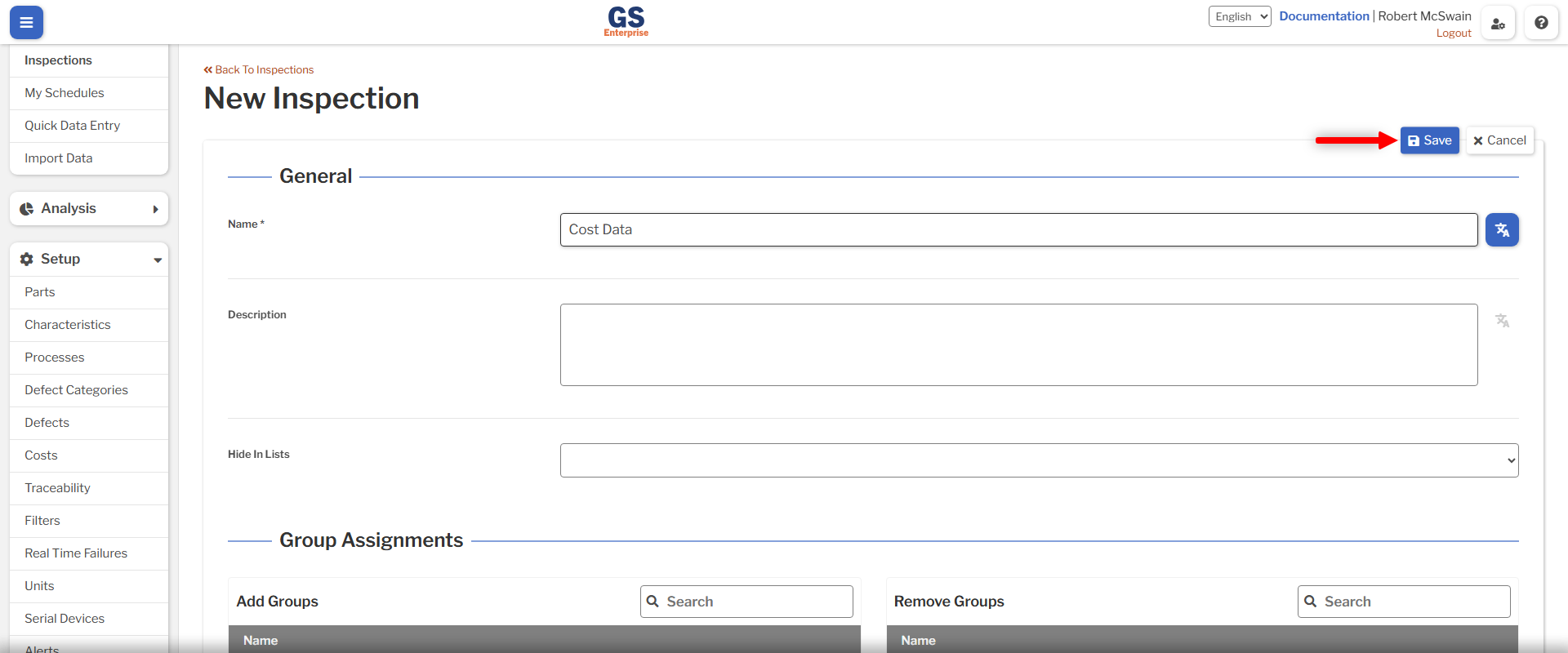
- Fill in the Name field with Cost Data.
- Press the Save button.
- Add a Part Test.
- Add a Traceability Test with the following properties:
- Select the Material Traceability.
- Set the Script ID of the test to material.
- Add one SPC Test with the following properties:
- Set the Test's Characteristic property to the Panel Weight Characteristic.
- Set the Script ID of the test to panelWeight.
- For each of the Chipped, Scratched, and Cracked Defects:
- Add a Pass/Fail Test.
- Set the Defect property to the appropriate Defect.
- For the Cracked Defect, set the NCU Count on Failure to 1.
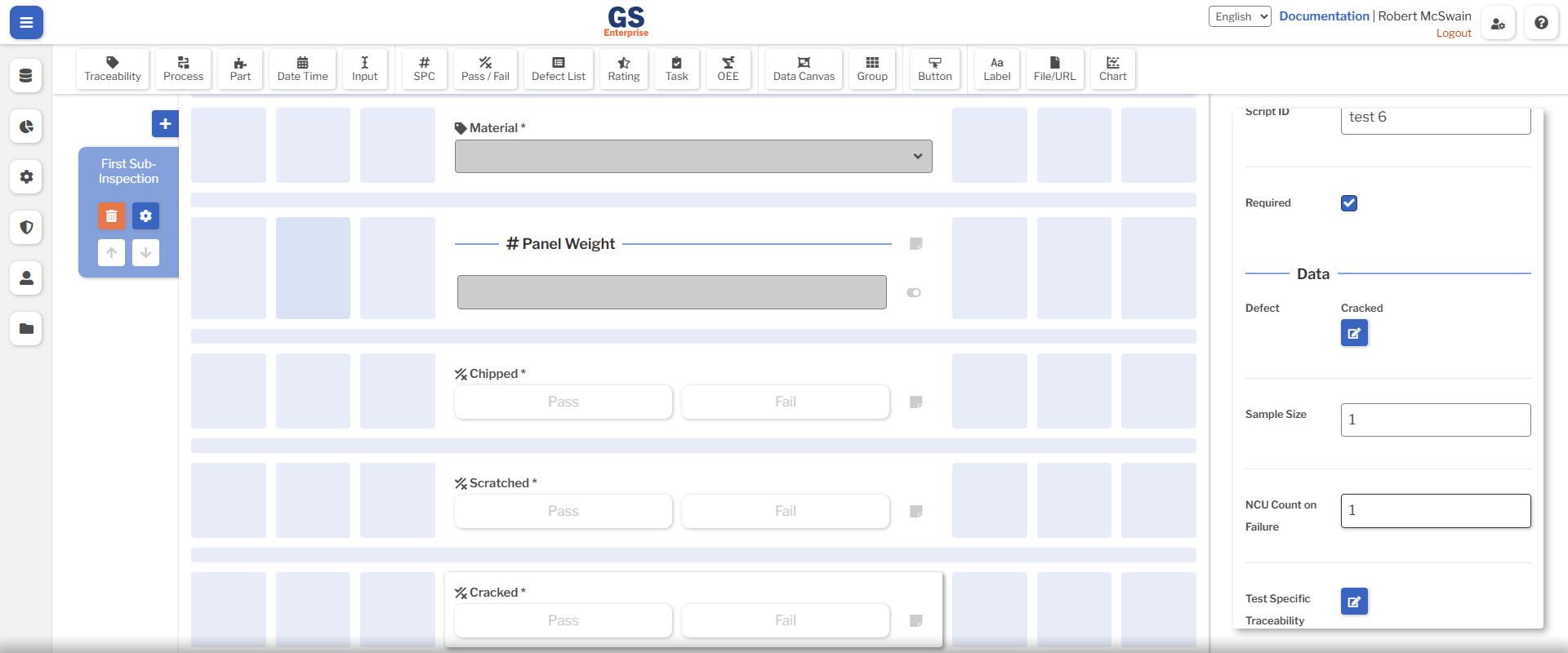
With this setup, the Chipped and Scratched Defects will never have an NCU count. This indicates that these Defects cause the Part to be sent for rework insted of being scrapped, and the costs associated with reworking those Defects will be stored.
The Cracked Defect will trigger an NCU and cause the part to be scrapped. The cost of scrapping the Part will be stored.
Finally, edit the Sub-Inspection settings:
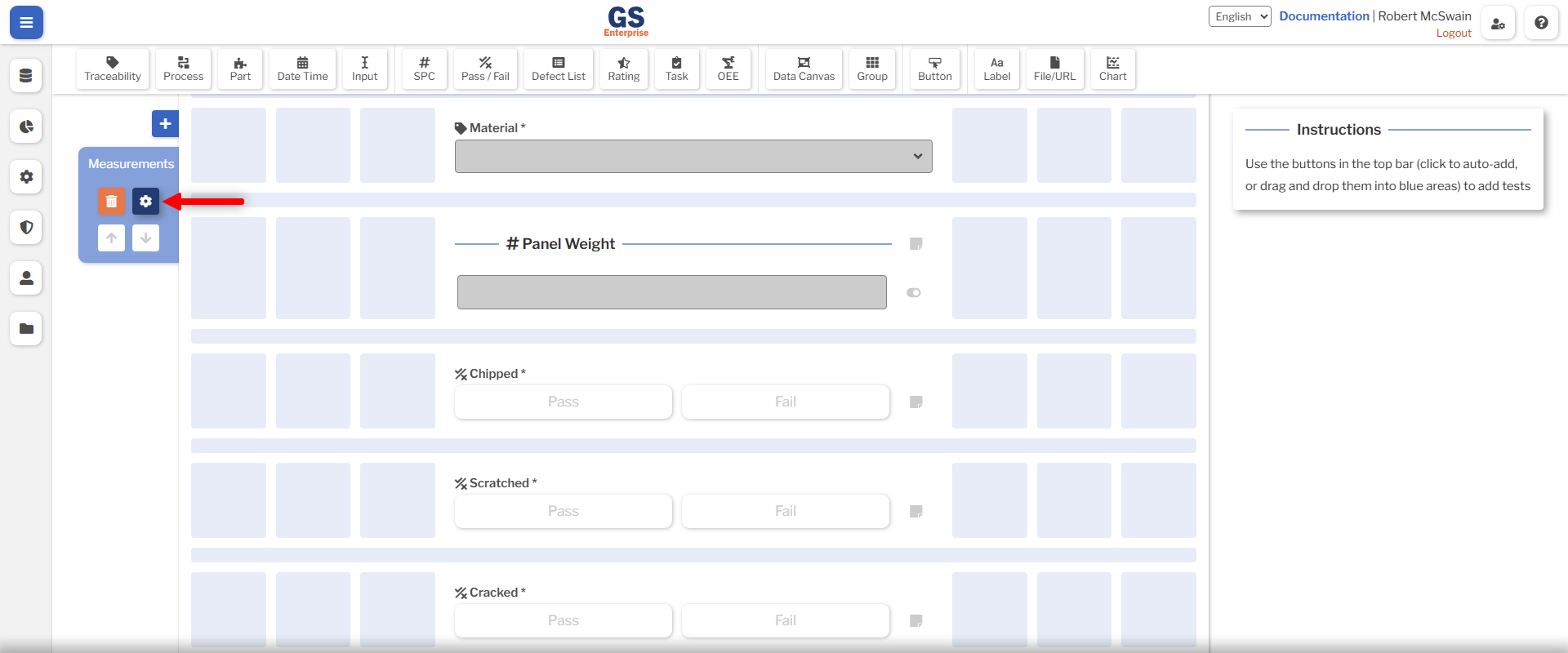
- Name the Sub-Inspection Measurements.
- Select Measurements as the Next Sub-Inspection.
- Set the Script ID to
measurements.
This would be enough to store data with the Costs set up in the Create Costs step. In the next step, we will add some additional customizations.
Modify NCU Costs
Subscription Tier Required
This feature requires the Premier subscription tier or higher.
Add a new Inspection Script and giving it a memorable name. If this interface is unfamiliar, review the Inspection Scripting Principles and Code Editor articles.
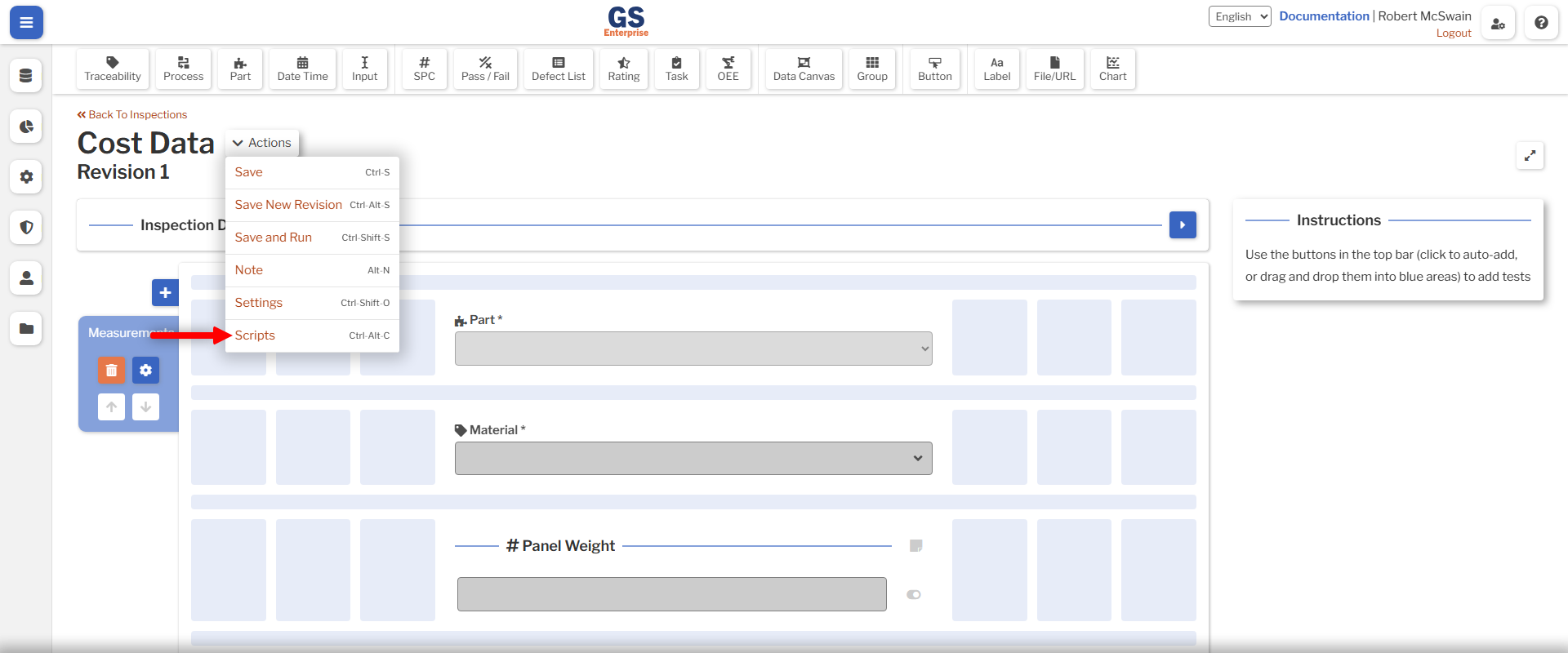
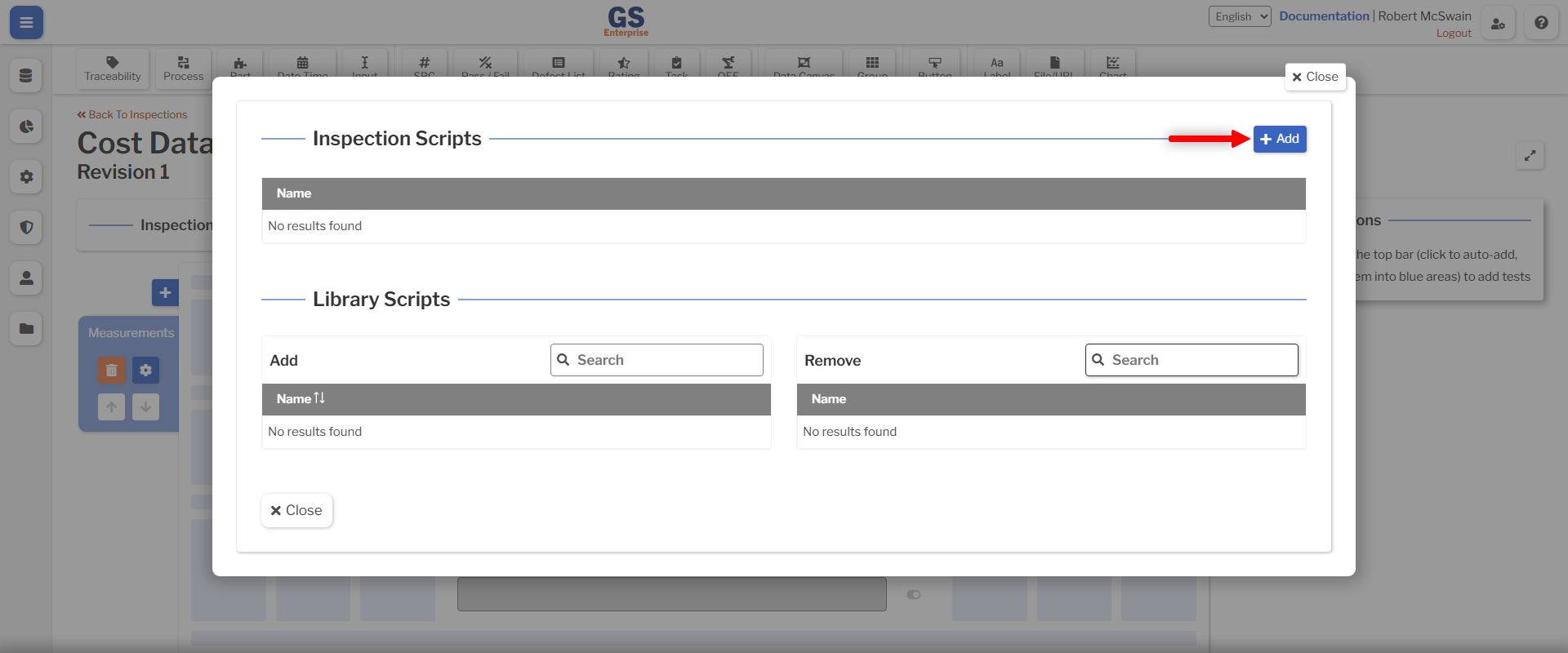
This script will be responsible for:
- Looking up the current material cost based on the Material Traceability.
- Calculating the additional material cost.
- Setting the total cost of scrap non-conforming units on data submit.
Calculate Material Cost
We will begin by creating a function to look up the cost of a material. This function will take in the current material Traceability value, and return a number that corresponds to the cost of that material per unit of weight.
For the sake of this guide, these values will be directly coded into the function. However, it would be possible to look up this value from a spreadsheet which has been uploaded to GS, or from an external ERP system.
/**
 * @param {string} material
 * @returns {number}
 */
function lookUpMaterialCost(material) {
    switch (material) {
        case 'Brass':
            return 0.015;
        case 'Aluminum':
            return 0.0035;
        case 'Stainless Steel':
            return 0.012;
        default:
            return 0.00;
    }
}
Exercise
Try modifying the script to look up the values from a CSV loaded into GS instead.
This function needs to be called from somewhere. Modifying the NCU cost is the final thing that will be done before submitting data, so we will use the onBeforeDataSubmit event. In the onBeforeDataSubmit event, modifying event.data.dataSet changes the data which is stored. We will use this to change how the NCU cost data is stored.
const subi = gsApi.inspection.subInspection('measurements');
subi.onBeforeDataSubmit(async (e) => {

});
Inside of this event, fetch the Material they selected from the Traceability test:
subi.onBeforeDataSubmit(async (e) => {
    // Find the material cost per weight
    const traceabilityProperties = await subi.traceability('material').getProperties();
    const material = /**@type {string} */(traceabilityProperties.value);
});
And then call the created function in order to lookup the material cost:
subi.onBeforeDataSubmit(async (e) => {
    // Find the material cost per weight
    const traceabilityProperties = await subi.traceability('material').getProperties();
    const material = /**@type {string} */(traceabilityProperties.value);

    const materialCostPerWeight = lookUpMaterialCost(material);
});
Finally, retrieve the value from the Weight Characteristic, and multiply that by the material cost:
subi.onBeforeDataSubmit(async (e) => {
    ...
    // Retrieve the average entered weight
    const weightProperties = await subi.spc('panelWeight').getProperties();
    const weight = weightProperties.value.reduce((sum, subgroupValue) => /**@type {number}*/(subgroupValue.value) + sum, 0) / weightProperties.value.length;

    // Calculate the final material cost
    const materialCost = materialCostPerWeight * weight;
});
The average weight is calculated by summing the weights with the Javascript reduce function, and then dividing by the number of measurements collected.
Look Up Base NCU Cost
Next, we need to look up the base cost of the Part produced. This data comes from GS, and was set up in the Create Costs step.
Tip
In this guide, NCU costs have only been set for Parts. However, you could also vary the base NCU Cost by Process, in which case you would want to also pass the Process into the gsApi.entity.getNCUCost function.
subi.onBeforeDataSubmit(async (e) => {
    ...
    const part = await gsApi.inspection.getCurrentPart();
    const baseCost = await gsApi.entity.getNCUCost(part?.id);
});
Set Final Cost
Now that we have the base cost and the material cost, they must be set on the data being submitted. This will be done by setting the ncuCostOverride property on the DMS Records. The NCU costs are calculated per NCU, so it is safe to set this on all DMS Records. When set on a record with no NCU, the calculated cost will be $0.
To begin, calculate the final NCU cost:
Next, loop over all of the data. If the record is not a DMS record, ignore it. Then, set the ncuCostOverride on it:
subi.onBeforeDataSubmit(async (e) => {
    ...
    e.data.dataSet.data.forEach((dataPoint) => {
        if (dataPoint.type !== 'dms') {
            return;
        }

        const dataToInsert = /**@type {DMSDataPointToInsert}*/(dataPoint.data);
        dataToInsert.ncuCostOverride = finalCost;
    });
});
Testing
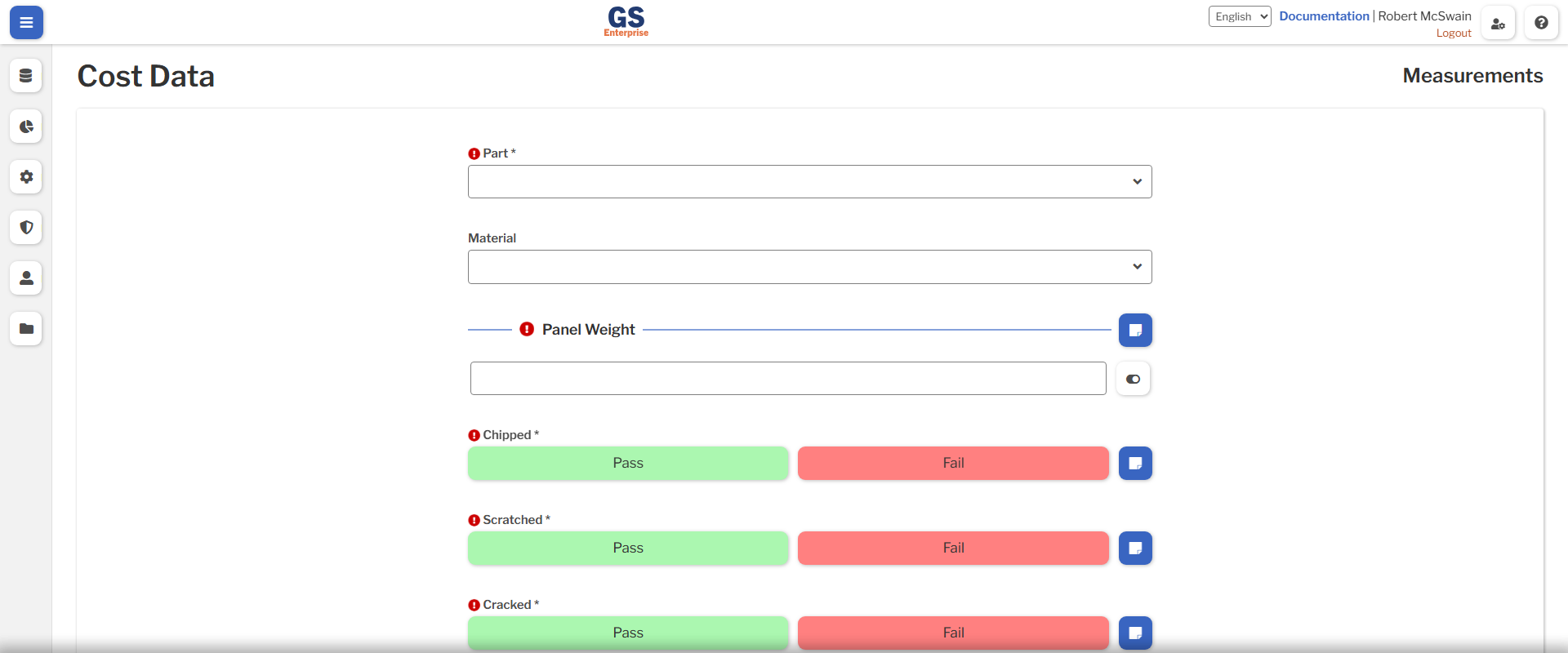
Save and Run the Inspection.
Run the Inspection several times, modifying which Defects are passed and failed.
Next Steps
Storing costs data does not provide much value without accompanying analysis. Next, we will look at how to draw charts and see which Material is costing the most money.
Final Code
/**
 * @param {string} material
 * @returns {number}
 */
function lookUpMaterialCost(material) {
    switch (material) {
        case 'Brass':
            return 0.015;
        case 'Aluminum':
            return 0.0035;
        case 'Stainless Steel':
            return 0.012;
        default:
            return 0.00;
    }
}

const subi = gsApi.inspection.subInspection('measurements');
subi.onBeforeDataSubmit(async (e) => {
    // Find the material cost per weight
    const traceabilityProperties = await subi.traceability('material').getProperties();
    const material = /**@type {string} */(traceabilityProperties.value);

    const materialCostPerWeight = lookUpMaterialCost(material);

    // Retrieve the average entered weight
    const weightProperties = await subi.spc('panelWeight').getProperties();
    const weight = weightProperties.value.reduce((sum, subgroupValue) => /**@type {number}*/(subgroupValue.value) + sum, 0) / weightProperties.value.length;

    // Calculate the final material cost
    const materialCost = materialCostPerWeight * weight;

    const part = await gsApi.inspection.getCurrentPart();
    const baseCost = await gsApi.entity.getNCUCost(part?.id);
    const finalCost = materialCost + baseCost;

    e.data.dataSet.data.forEach((dataPoint) => {
        if (dataPoint.type !== 'dms') {
            return;
        }

        const dataToInsert = /**@type {DMSDataPointToInsert}*/(dataPoint.data);
        dataToInsert.ncuCostOverride = finalCost;
    });
});